· 21 min read
How to use Instagram Live previews to sell paid event tickets
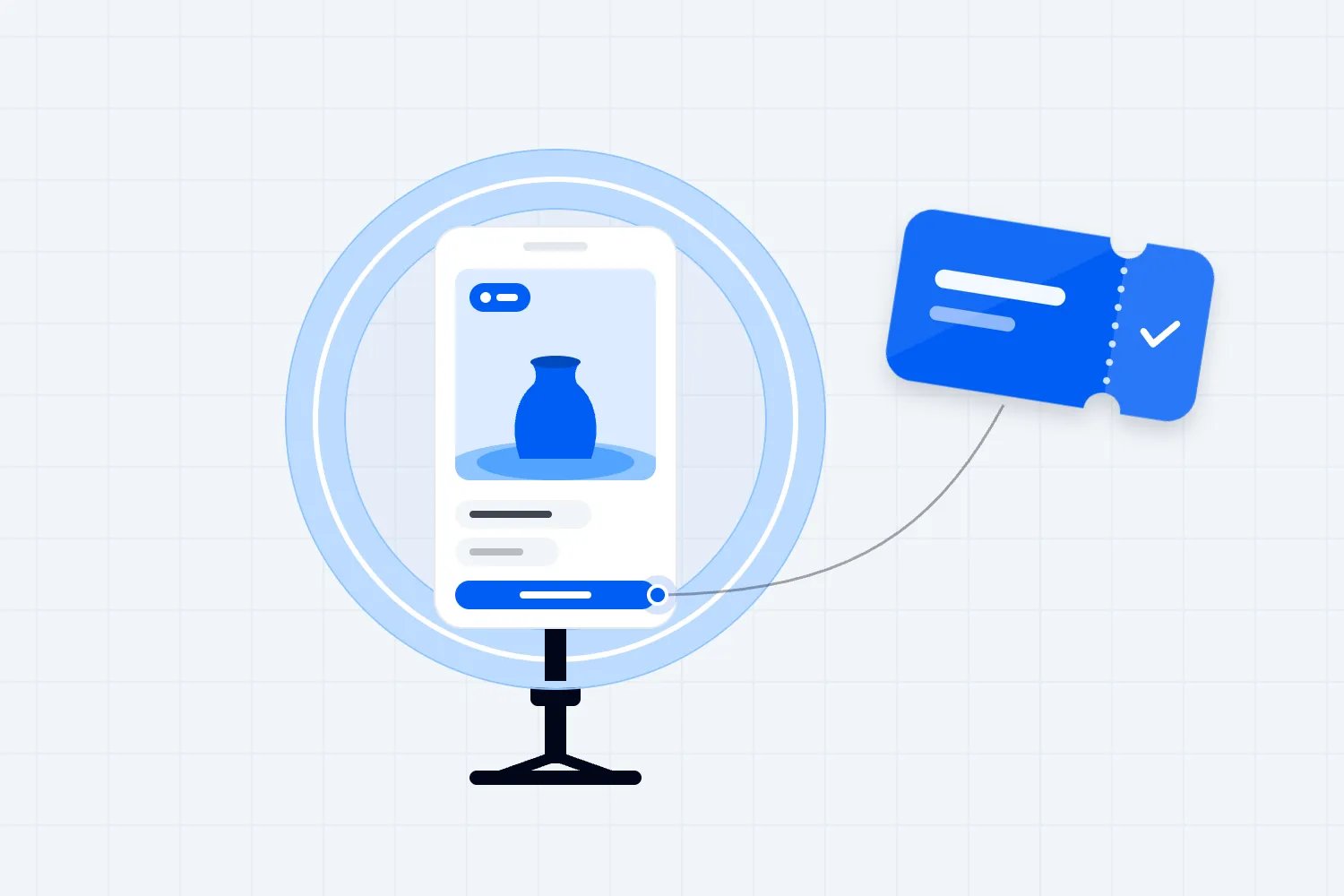
You've posted the lineup, explained the date and shared the ticket link. People are interested, but some still haven't bought. Maybe they don't know what the workshop will actually feel like. Maybe they're wondering whether the performance is worth a trip across town. An Instagram Live preview gives you a chance to answer that uncertainty while the person behind the event is right there.
Use the broadcast to show a small, useful part of the experience, answer the questions holding people back, and direct viewers to a working ticket page. Plan the purchase route before the camera goes on. A good conversation can help someone decide to attend, but they still need to find the right ticket and complete payment.
We're talking about a free preview that promotes a separate paid event. Keep that distinction clear in every announcement. Someone watching your Instagram Live hasn't bought admission, and the preview doesn't replace a system for delivering a paid online event. The promise is a closer look at what they're considering buying.
Decide what the preview needs to explain
The first thing you want to do is read the questions you've already received. Look through messages, comments and conversations with previous attendees. You don't need to invent a theme because the calendar says it's time to go live. You need a reason a prospective buyer would stop what they're doing and watch.
Suppose you're selling tickets to a beginner pottery workshop. Your posts show beautiful finished pieces, but messages keep asking whether beginners will struggle. A useful preview lets the instructor demonstrate an early step, explain how they help someone who gets stuck, and describe what attendees take home. That answers a buying question the photographs haven't settled.
A seated music night needs a different preview. A short conversation with the performers might explain the set, while a venue host shows the seating and talks through the evening's timings. Choose what matters to this audience. Someone arranging childcare may care more about the finish time than another rehearsal clip.
Write the decision you're trying to help someone make in ordinary language. "By the end, someone who's never done pottery should understand whether this workshop suits them" gives the host a useful direction. It also helps you reject material that is interesting to your team but irrelevant to the buyer.
Keep the broader campaign doing its own work. Our guide to promoting an event on Instagram explains how your profile, Reels, Stories and partners introduce the event. A Live preview develops one part of that explanation. Trying to squeeze the entire campaign into a broadcast usually leaves viewers with too much information and too little understanding.
You may discover that the obstacle is more basic. If people don't know the date, venue or price, update the announcement and ticket page first. Going live to compensate for missing event information creates another place where someone has to search for an answer you could have provided immediately.
Check whether your account can run the broadcast
Before announcing a Live, check Instagram's current Live requirements and open the feature on the account you intend to use. Eligibility rules have changed, so don't build your plan around an old tutorial. Check your account's access, any restrictions and the controls available in your version of the app before asking guests to promote it.
If Live isn't available, don't make buying followers part of your event marketing plan. Record the same demonstration and answer the questions in a captioned video. You can still publish a linked Story and point people to the event page. The useful explanation survives even when your preferred format doesn't.
A partner account may be another option, provided the partner actually wants to host and can use the feature. Agree who introduces the event, which account viewers should visit for tickets, and what happens if guest access fails. Test the arrangement together rather than assuming that one person's eligibility settles every participant's access.
Meta also documents parental permission requirements for Instagram Live on Teen Accounts. Teens under sixteen need parental permission to go live. If young performers are involved, organise the preview with the appropriate adults and account permissions. Don't ask someone to change their stated age to make your promotion easier.
Treat account access as part of preparation, alongside the microphone and ticket link. A booked guest, an announced start time and a missing Live control are a frustrating combination. Finding the problem early gives you time to choose a recording, a different host or another date without letting interested buyers down.
Make the ticket route work before inviting viewers
Imagine someone likes the preview and wants to buy halfway through. Where do they go? Decide on one primary route, such as the clearly labelled event link on the hosting account's profile. Say the account name and the link label in your announcement so viewers don't have to work out whose profile you mean.
Don't depend on a typed address in Live comments functioning as a purchase button. Test what a viewer can actually open in your account's current interface. Comments can repeat the instruction, but your plan needs a working destination outside the conversation. "Open our profile and choose Saturday pottery workshop tickets" is much easier to follow than a long spoken web address.
Publish a Story with the event's ticket link before you start, using the link control available to your account. Open it from another account on a phone and check the destination. Tell viewers where that Story is, and keep the profile route available too. Someone may return after the Story has expired.
The event page should continue the promise they've just heard. If the preview says the workshop suits complete beginners, the description should explain that clearly. Include the date, location, length, materials and what the ticket covers. If firing or collection happens later, explain it before someone pays expecting to carry a finished pot home.
With Loopyah's ticket checkout, buyers can purchase without creating an account, and their confirmation email links to their tickets. That removes a purchase step, but you still need to explain the actual event accurately. The preview, page and confirmation should agree on what the buyer has booked.
Test the route as someone unfamiliar with your business. Start inside Instagram, open the event, choose the relevant ticket and check the price shown before payment. Ask a colleague to explain what they think they're buying. If their answer differs from your offer, revise the information before sending viewers there.
If you have several events on sale, generic link labels become particularly unhelpful. Use the event name or date so the right option is recognisable. Avoid directing someone through your homepage, a crowded menu and several unrelated offers when you can take them straight to the event they came to see.
Choose a preview that shows enough to make a decision
A preview needs a satisfying piece of the experience. "You'll have to buy a ticket to find out" isn't much of an answer when someone is asking whether they're ready for a beginner class. Demonstrate something small and complete, then explain how the paid event develops it through practice, support or a longer programme.
For the pottery example, the instructor could show how to centre a small piece of clay and explain what they correct during the lesson. The viewer learns something, sees the teaching style and understands why being there matters. You haven't promised that watching a phone video delivers the same experience as guided practice at a wheel.
For a discussion event, ask a speaker to explain one disagreement the session will examine. Let them develop an answer rather than recite their biography. The buyer can hear how they think and judge whether the conversation interests them. Keep substantial unpublished material private if your agreement with the speaker requires it.
A venue preview works when the room affects the decision. Show the entrance, seating arrangement or relevant facilities honestly, with permission. Explain anything the camera can't establish, such as whether the seating is reserved. A quick pan across empty chairs doesn't tell someone whether their group can sit together.
For music, performance permission matters before the promotional value of the clip. A conversation about the show can be useful even when you can't broadcast the rehearsal audio. Ask the performer what the audience will hear, why the set was chosen and what makes this particular appearance different, using details they can genuinely confirm.
Don't announce a surprise guest, extra session or inclusion you haven't secured. A relaxed live conversation can accidentally create a promise your ticket page never made. Brief every participant on the confirmed offer, especially if they're used to improvising entertaining answers for their own audience.
Pick the host and guest for the buyer's question
Choose a host who can keep the conversation clear and a guest who can answer the question. For a workshop, that is often the instructor. For venue access, it may be someone from the venue team. Familiarity with the details matters more than sounding like a presenter.
The host should be comfortable interrupting politely when an answer needs clarification. If the instructor says everyone will make a finished piece, ask when the piece will be ready and how collection works. That small correction can prevent disappointment later. Viewers should hear the practical explanation while they're deciding whether to book.
Meta's introduction to Instagram Live Rooms describes broadcasts with invited guests. Check the current guest controls on your account during rehearsal. You don't need to fill every available guest position. A focused conversation with the person who knows the event often gives buyers more useful information than several introductions.
Agree the ticket instruction with the guest in advance. If the broadcast runs on their account, their audience should hear where to buy without needing to guess whether the event belongs to them or you. Have them practise saying the event name and the exact profile or Story route you're using.
Give the guest room to speak naturally. A short brief with the buyer's question, the demonstration and confirmed event details is usually more helpful than scripting every response. Write the opening and purchase instructions more carefully, because those are the moments where ambiguity can send someone to the wrong place.
Avoid turning the session into an interview about your business. The viewer needs enough context to trust the event, but lengthy origin stories can swallow the time you intended to spend answering their questions. If a story explains the programme or teaching approach, use it. Otherwise, return to the experience they're paying for.
Invite the people who have a reason to watch
Your invitation should describe what the preview will explain. "We're going live" asks people to care about your format. "Meet the instructor and see how our beginner pottery workshop starts" tells them what they'll get. Add the day, time and time zone, along with the hosting account.
Make it clear that watching the preview is free and that the workshop has a separate ticket. Include the event date too, so nobody mistakes the broadcast time for the paid session. This sounds obvious until a shared screenshot loses the surrounding caption and becomes someone's only information about the event.
Use the native scheduling or reminder controls if they're available on your account, and check the finished announcement from another account. Don't promise that every follower will receive a notification. Publish the details where your likely buyers already look, and ask participating partners to share the same information.
Choose the broadcast time around your audience's availability and your team's ability to answer questions afterwards. There isn't a universal best hour that fixes an unsuitable offer. A parent considering a weekend class may have different viewing habits from someone planning a late evening show. Your previous responses and attendance patterns are better starting points than a generic posting timetable.
Collect questions before the broadcast in whatever account controls you can use reliably. Tell people they can ask about skill level, materials or access. Those prompts help someone recognise that their hesitation is welcome. They also give the host prepared questions if the live conversation starts quietly.
Reach suitable past buyers through the channels you already have permission to use. Loopyah's attendee email tools support audience selection and scheduled messages, so you can send a relevant invitation without exporting a list for a separate campaign. Avoid emailing everyone about a workshop that only suits a small part of your audience.
Don't ask the venue and instructor to create separate explanations of the same offer. Supply the confirmed details and purchase route, then let them introduce the preview in their own voice. Consistent information helps; identical captions across every account aren't necessary.
Prepare the room, sound and permissions
Use a quiet location where the demonstration is easy to hear and see. Test the actual phone, connection and microphone you'll use, with someone listening from another device. A rehearsal in an office doesn't tell you whether a workshop extractor or venue sound system will drown out the speaker at the broadcast location.
Set the phone somewhere stable and frame the activity clearly. If you're showing a hand movement, the viewer needs to see the hands. If you're explaining the room, allow time for the camera to settle before talking through the detail. You don't need elaborate production to make the information understandable.
Write down the confirmed ticket details where the host can check them. Keep someone available to look at the event page if a viewer asks about availability or a ticket option. Don't guess because the camera is running. Say you'll check, then provide the answer through the agreed public follow-up or private conversation as appropriate.
Get permission from the people appearing and agree how the recording may be reused. A guest agreeing to a live conversation hasn't necessarily agreed to every future paid advertisement you might make from it. Set the boundaries beforehand, including whether you'll publish excerpts, a full replay or only written answers.
Watch what appears in the background. Move attendee lists, payment information and staff paperwork out of view. Tell the venue team which area you're filming so someone doesn't walk into a broadcast while carrying private booking details. Restricting the filming area is easier than repairing a privacy problem afterwards.
Be especially careful with music. Meta's licensed music guidance says its licensed library is intended for personal, non-commercial use. A track being available in an editor doesn't establish permission for your commercial Live preview. Confirm the rights for the planned broadcast and reuse, or choose a spoken demonstration without music you can't clear.
Give viewers the useful part early
Start by explaining what people are watching, who the paid event suits and what you're about to show. Don't wait for the audience to grow before beginning. Someone who arrived on time should get the promised preview, and a later replay viewer shouldn't have to sit through several minutes of welcomes.
For the illustrative workshop, an opening could sound like this. "We're showing how Saturday's beginner pottery session starts. If you've never used a wheel, this is the bit you've probably been wondering about. The workshop is a separate paid event, and we'll explain what's included after the demonstration."
Then introduce the instructor briefly and start the demonstration. Explain any relevant detail before it becomes confusing. If the camera shows an instructor using prepared clay, say that attendees receive materials at the workshop. Viewers shouldn't have to infer what they need to bring from whatever happens to be on the table.
Mention the purchase route once viewers understand the offer, and repeat it when you finish or answer a booking question. Repetition is useful because people join at different times. Constantly interrupting the demonstration to ask for sales makes it harder for someone to decide whether the event is worth buying.
Read audience questions aloud before answering them. Someone watching a recording may not see the original comment, and a live viewer may miss it while looking at the demonstration. "You're asking whether you need previous experience" gives the answer enough context to remain useful.
If comments are quiet, use questions you genuinely received beforehand and say that's where they came from. Don't invent a viewer to make the room seem busy. A small audience can still contain interested buyers. Keep the host focused on explaining the event rather than apologising for the number on screen.
Leave time for practical questions, then close with the current offer and route to tickets. Confirm the event date and any real booking deadline. If nothing expires tonight, don't manufacture a deadline because you want a dramatic ending. A clear invitation is enough when the preview has answered the buyer's concern.
Handle objections without making promises you can't keep
Some questions ask for reassurance; others reveal that the event isn't suitable. Give both a direct answer. If someone needs an advanced class and you're teaching beginners, explain the level honestly. Selling an unsuitable ticket can create a disappointed attendee and more work for your team.
When price comes up, explain the confirmed inclusions. For the pottery workshop, discuss the teaching, materials and agreed firing arrangement rather than saying the ticket is "amazing value." People can judge the price more fairly when they understand the purchase. If an inclusion costs extra, say so before they book.
For access questions, distinguish what you've verified from what you still need to check. Don't assume a venue is accessible because you remember a ramp. Offer the appropriate contact route for a specific requirement and follow up with accurate information. Update the public event description when the answer would help other buyers too.
A viewer asking about refunds needs the actual policy. Keep it available to the person answering questions and point to the relevant event information. Avoid casually promising flexibility that your team can't provide. If you decide to offer an exception, agree it through your normal process and confirm it directly with the buyer.
Protect personal information during questions. Ask someone to send booking details privately rather than posting an order number or email address in comments. Explain where your team can help, then continue the public discussion. Everyone else can hear the general answer without seeing a customer's private information.
If a question exposes an error, correct it plainly. Perhaps the guest says materials are included but a specialist tool requires an additional fee. State the accurate information during the broadcast and fix any announcement that repeats the mistake. Keeping the conversation smooth matters less than keeping the offer trustworthy.
Plan for a useful recording and an interrupted broadcast
Check the saving and replay options available to your account before you start, and decide who will save the recording. Don't assume the platform will retain everything you need indefinitely. Make a separate permitted recording if that is part of your agreed production setup, and test it before relying on it.
A full replay is worth sharing when it answers the buyer's question clearly. Watch it first. Check sound, permissions and event information, and remove or avoid publishing material that creates a problem. If your available replay controls don't let you make the necessary edit, use an appropriately edited recording instead.
Provide a written version of the key answers and captions on recorded excerpts where possible. The W3C's guidance on accessible audio and video explains why captions and text alternatives matter. Don't assume every viewer can hear the instructor or follow a small visual detail on a phone.
Keep that written information practical. Summarise who the session suits, what attendees do, what the ticket includes and where to book. Describe the relevant movement or room feature when the video alone carries the explanation. A caption repeating "great Live today" helps neither accessibility nor the buying decision.
Agree what happens if the connection fails. Your team can publish a Story directing people to the ticket page and explaining whether you'll return or post a recording later. Don't keep restarting without telling people which account to watch. Give the guest the same plan so their audience receives consistent instructions.
If the event changes after you've shared the recording, update the surrounding information and stop promoting outdated claims. A replay saying "tickets available" needs attention after a sell-out. A changed venue needs clear correction. Treat the recording as active event promotion for as long as people can reasonably use it to decide.
Follow up while the question is still fresh
After the broadcast, publish the promised booking information and answer any questions your team couldn't settle live. Include the same ticket destination you tested earlier. Someone returning to the profile should recognise the event from the conversation and find the next step without hunting through unrelated posts.
Use the questions to improve the event page. If several people ask whether beginners need to bring tools, add the answer to the description. The next buyer may have exactly that concern and never send a message. This is one of the most useful outcomes of the preview, even when the live audience is modest.
Share an excerpt when it explains something that the original invitation didn't. The instructor helping a beginner understand the first step may be more useful than the host's closing thanks. Keep the answer complete enough to make sense, add the current event details and provide the working purchase route again.
If someone asks for the link privately, send the relevant event destination and answer their question. Don't make them exchange several messages just to receive information you already promised. Keep requests for marketing consent separate from that practical response, following the rules that apply to your business and audience.
Think about the people who already bought, too. They may watch because they want reassurance or practical details, rather than because they need another sales message. Thank them for booking and tell them where their event information will arrive. Avoid making them feel that a new promotional offer is the reward for waiting while their earlier purchase was a mistake.
If you're tempted to add a discount after a quiet broadcast, check whether price was actually the obstacle. The comments may have revealed confusion about the location or the skill level. Fixing that information can help someone buy at the existing price. A discount changes what you receive for every eligible purchase, so it needs a commercial reason beyond an uncomfortable silence on camera.
Write down what you want to change before planning another session. Perhaps the demonstration was hard to see, the guest needed a clearer brief or the event link wasn't labelled well. Make the relevant change and keep the rest familiar enough to judge whether it helped. Otherwise, you can spend another evening preparing a completely different broadcast and still have no idea which part improved the buyer's experience. Keep your notes specific enough that the next person hosting can use them without needing to watch the entire replay first.
Judge the preview by buying activity and cost
Record the broadcast's available audience figures alongside visits and ticket orders from the purchase routes you used. Keep the measures separate. A viewer count doesn't equal unique prospective buyers, and a ticket order may contain several tickets. Write down which figure you're comparing before deciding whether the preview worked.
If your analytics setup supports campaign links, use a recognisable label for the preview's ticket destination. Google's campaign URL guidance explains how tagged links help identify referring campaigns. Test that your own reporting records the visit as expected. Don't assume adding a label proves that every later order came from the broadcast.
Count the time spent organising, rehearsing, hosting and following up, along with any direct production cost. Compare that cost with the contribution from additional ticket sales after the costs that rise with each attendee. Gross ticket revenue alone doesn't tell you whether another preview is a sensible use of your team's time.
Be cautious about sales immediately after the broadcast. A partner may have posted, an email may have arrived or an existing buyer may have finally returned to checkout. Record those overlapping activities. Tracked orders are useful evidence, but a timing coincidence doesn't establish what caused the purchase.
Choose the next action from what you learn. If viewers ask useful questions but can't find tickets, repair the route. If people visit without buying, inspect the offer and checkout. If the preview costs more work than it contributes, try a shorter recording. Keep the format that helps suitable buyers understand the event and makes commercial sense to repeat.

Author: By the Loopyah Content Team
The Loopyah Content Team shares expert insights, practical guides, and industry updates to help event organizers create unforgettable experiences and stay ahead in the event planning world.