· 21 min read
Live streaming equipment checklist for a paid event
For a paid livestream, you need clear audio, a camera or direct screen feed, a way to turn those feeds into a broadcast, dependable upload capacity, and a separate device checking what buyers receive. Add lighting, recording, captions and tested spares around the experience you sell. Use your programme to choose the equipment, then test the complete experience from the buyer's screen.
So you're selling access to a live talk, performance or demonstration, and now you need to work out what to hire. Every supplier seems to have a different list. One wants another camera. Another recommends a more powerful computer. Meanwhile, you're trying to keep the production bill within the ticket revenue the event can generate.
Start with what buyers need. Then make each piece of equipment earn its place. This guide walks you through the checklist, the connections between the equipment, a useful resolution comparison, and the checks that tell you whether the setup is ready.
Write down what the online ticket includes
The first thing you want to do is describe the show from the viewer's side. What can they see? What can they hear? Do they watch quietly, submit text questions, or speak? Do they get a replay? Your answers change the equipment and the people you need to operate it.
For this checklist, we're focusing on a broadcast that viewers watch online. It might come from a studio, a venue or a presenter at a desk. You can include moderated text questions without turning every viewer into a video participant. If you're running a room where remote guests speak back to the stage, use our hybrid event equipment checklist for the additional sound routing and room requirements.
Write a short production brief before requesting quotes. Name the venue, live duration, presenters, slides, demonstrations, playback videos and any audience questions that belong in the stream. List the viewing devices you expect people to use. A spreadsheet demonstration watched on a phone has a different readability problem from a performance watched on a television.
Don't promise a camera view of every activity unless someone has priced and staffed it. A roving camera, another room or an unplanned interview means additional capture, sound and coordination. The useful question is whether buyers need that view to receive the event you've sold.
Check that the delivery service restricts access the way your ticket promises. Test with a buyer account, then try entering as an unauthorized visitor. An unlisted, shareable URL alone isn't individual paid access. Confirm which service controls viewing permission and what happens when someone shares their link. Don't assume the ticket checkout also hosts or gates the stream.
Put the replay promise in the brief too. State which sessions you intend to record, when access will arrive and how long it lasts. Agree rights and permissions for the material with the relevant people before streaming or distributing it. Recording something successfully doesn't establish permission to sell it later.
The equipment checklist you can send to a supplier
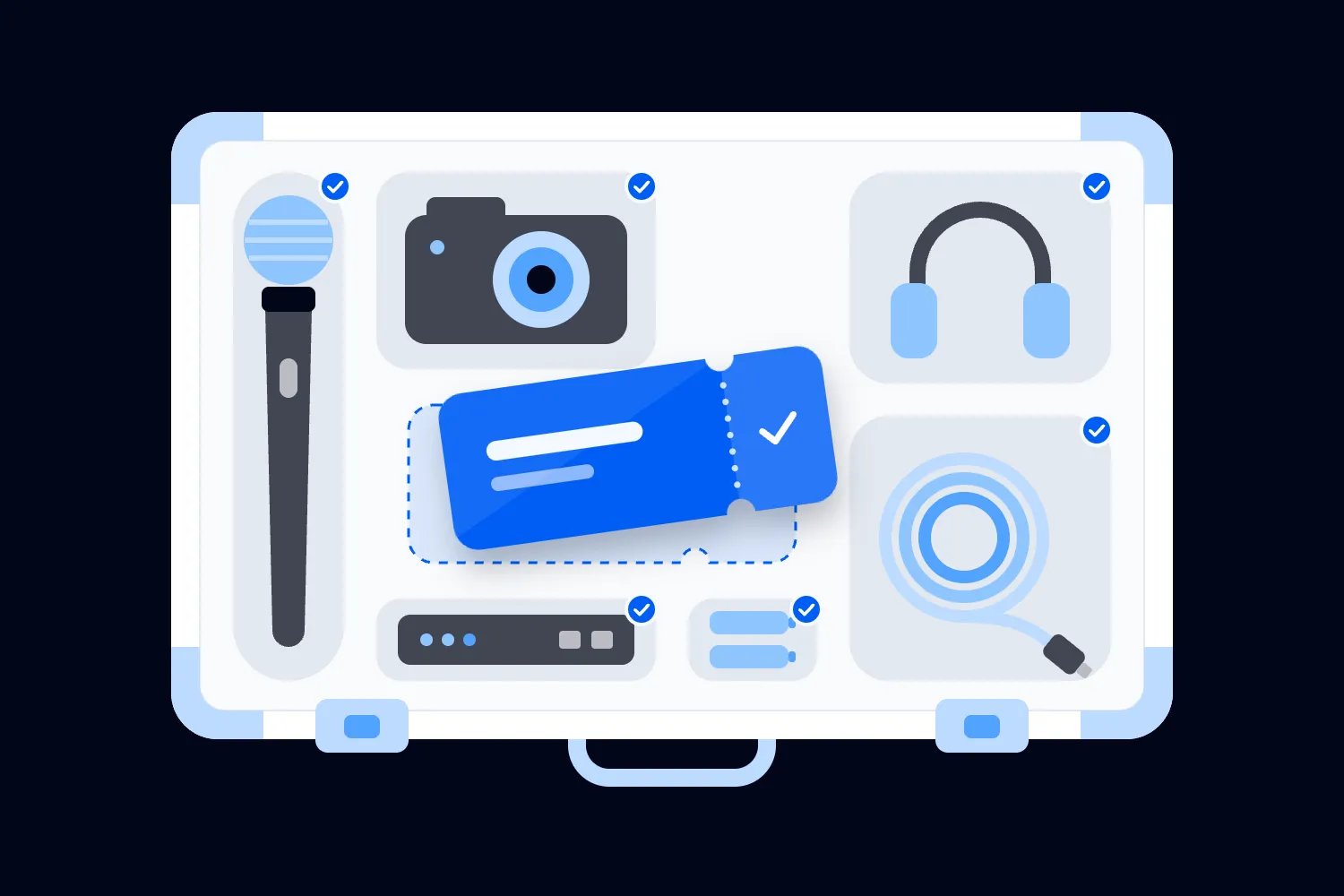
Use this as your starting list. Beside every item, record who supplies it, who operates it and what proves it works. If the supplier says an item is unnecessary, ask which other piece of equipment does that job.
Microphones for every voice the buyer needs to hear, plus stands, clips or mounting accessories.
An audio mixer or interface with the right inputs and a compatible feed into the broadcast system.
Closed headphones for monitoring the stream without playing it back into live microphones.
Cameras or webcams suited to the shot, with lenses where required, supports, continuous power and video cables.
A direct feed for slides, demonstrations and programme video, including playback audio.
Lighting appropriate to the presenter position and the actual camera settings.
Capture devices or a video switcher if the sources cannot connect directly to the streaming system.
A dedicated streaming computer or hardware encoder, configured for the chosen delivery service.
A monitor that lets the operator check the sources and final programme.
A wired network connection, any required adapters, and an agreed backup connection.
Venue-approved power distribution and cable protection.
Recording storage and a tested process for closing, checking and copying the files.
Captioning provision and a viewer device that can check the captions in the actual player.
A separate viewer device, ideally checked by someone outside the production network.
Compatible spare cables, power supplies, microphone batteries and a rehearsed fallback setup.
That list describes jobs, not a universal shopping basket. A small desk broadcast may combine several jobs in one computer. A larger performance may separate audio, switching, encoding and recording across different systems. You need to understand the connections either way.
Keep the final version with the running order. When a presenter adds a video or changes computers, update the checklist and test the new source.
Spend on intelligible audio first
If a buyer can't hear the speaker, the expensive camera doesn't help. Start with microphone placement and a clear route into the stream. Then work on the picture.
Choose microphones around how people behave. A desk presenter can stay near a mounted microphone. A moving demonstrator needs something that follows them. A panel needs coverage for every speaker, including the host. Ask the sound engineer to recommend the microphone type and demonstrate it with the actual people who will use it.
Shure's livestream audio advice explains the value of an external microphone and of having someone listen for problems. Its guidance also describes the interface needed to connect an XLR microphone to a computer or mobile device. Use that to ask a practical question about your hire package: does it include the whole connection, or only the microphone?
An audio interface converts microphone or mixer audio into something the computer can receive. A mixer combines several sound sources and lets an operator control their levels. Some equipment does both jobs. Match the inputs to the sources, rather than assuming any socket that accepts the cable will produce usable sound.
If you're taking a feed from a venue mixer, agree the output and level with the engineer. A loudspeaker mix made for people in the room may need adjustment for listeners at home. The engineer should check the stream feed separately, including presentation videos and questions, instead of assuming the room sounds good so the broadcast must sound good.
Listen through the receiving player, away from the stage sound. Otherwise the room can hide a missing voice online. Check ordinary speech, a quieter speaker and the loudest intended moment. Ask the engineer to leave enough level margin for unexpected volume without making quiet speech hard to understand.
Have the host repeat any unamplified audience question before answering. Better still, supply a microphone and wait until the questioner has it. The checklist is only useful if the running order gives your team time to use the equipment properly.
Choose cameras for the shots you need
A camera earns its place when it shows something the viewer needs. Start with a stable shot that captures the main content clearly. Add another angle when it solves a specific problem, such as showing a demonstration close up while keeping a view of the presenter.
For a seated talk, a webcam or camera near the presenter may be enough. For a venue stage, ask whether the lens can produce the intended framing from the permitted camera position. A camera described as high quality can still deliver a distant face if the lens and position are wrong.
Test under show lighting. Confirm focus, exposure and colour, then check what happens when the presenter moves. Don't leave every adjustment on automatic without a trial. A bright slide, dark costume or person crossing the frame can change what the camera sees and how its automatic settings respond.
Ask whether the camera can send a clean video output. That means the broadcast receives the picture without camera menus, battery icons or focus boxes. Confirm the output format supported by the capture device or switcher, and test the exact combination before accepting it.
The rental package should include a suitable tripod or mount, power arrangement and cable. Ask whether the camera can run for the whole programme without a recording limit, overheating problem or battery change disrupting the feed. Check the manufacturer's current instructions for the model being supplied; don't transfer an assumption from another camera.
Give the camera operator the running order and demonstration cues. If a speaker lifts a small object, the operator needs to know before it happens. More camera angles won't rescue a detail everyone discovers at the same time as the audience.
Send slides and demonstrations directly
Film the presenter, but send the slides directly into the broadcast where possible. A camera pointed at a projection screen gives you another set of focus, glare and legibility problems. A direct feed lets the operator show the material without relying on the room's screen.
Agree whether the presenter brings a laptop or uses a supplied playback computer. Put the required connections in writing. Include the presentation file, fonts, embedded media and anything that depends on a live website. A screenshot of a successful slide isn't proof that its embedded video will play with sound.
Have the operator test the presentation in its actual display mode. Check the feed the audience receives, not the presenter's desktop preview. Confirm that notes, private messages and unrelated windows stay out of the broadcast. Put the correct version of the presentation where the operator can find it.
For software demonstrations, choose a capture area large enough to show the task and small enough to keep the text readable. Check it on an ordinary viewer device. If the software is too dense to follow, simplify the demonstration or provide a supporting document. Increasing resolution won't automatically make tiny text readable on a small screen.
Give programme videos their own playback test. Check picture, sound, start point and end cue. Protected commercial video may not pass through the capture arrangement. Resolve the permitted playback method with the supplier before the event; don't plan around defeating content protection.
Prepare a spare presentation copy that the team can open locally. Keep your production brief clear about what happens if the live demonstration fails. A prepared recording or a simpler explanation can preserve the lesson while the operator deals with the broken source.
Check every connection before you choose the encoder
Here's where otherwise sensible equipment lists fall apart. Everything looks compatible until the team connects it. A camera has a video output, a computer has a USB socket, and somehow the picture still doesn't arrive.
A capture device brings an external video feed into a computer. A switcher selects between several feeds and may combine them into one programme. An encoder compresses the programme and sends it to the streaming service. Some devices combine these functions. Write down which device does each job in your setup.
Then ask the supplier to list the actual signal route in words. For example, the camera feeds the switcher, the presentation laptop feeds another input, the mixer feeds the agreed audio input, and the switcher sends the programme to the encoder. The encoder sends that programme to the delivery service. Your setup may differ, but every step needs an owner.
Check connection type, supported video format and cable length for each step. Don't assume that a camera's advertised recording resolution is the resolution its live output can deliver. Equally, a device accepting a particular plug doesn't mean it accepts every signal format sent through that plug.
Keep adapters attached to the job they serve. Name the presentation adapter, the camera adapter and the network adapter in the equipment list. Ask for tested spares of the necessary types. A box of assorted adapters is less useful than a replacement you already know works.
Label both ends of cables in a way the crew understands. Keep a short connection record with the operator, including which input carries which source. When the picture disappears, you want the operator checking the correct connection, rather than tracing every cable while the host waits.
Set the stream quality around delivery
Resolution describes how much picture detail the video carries. Frame rate describes how many pictures it shows each second. Bitrate describes how much data the encoder sends over time. Higher settings can demand more from the encoder and internet connection, so choose them together.
For a talk or slide presentation, start by asking what makes the material clear on the viewer's screen. For a fast-moving performance, ask whether the chosen frame rate shows the movement well. The answer should come from a test of the actual content, not a preference for the largest number on the specification sheet.
The comparison below uses Google's current YouTube live encoder recommendations, checked on 13 October 2026. It shows recommended H.264 video ingestion bitrates, in megabits per second. These are service-specific encoder settings, not minimum venue internet speeds or instructions for every streaming platform.
| Label | Recommended Mbps |
|---|---|
| 720p at 30 fps | 8 |
| 1080p at 30 fps | 14 |
| 1080p at 60 fps | 17 |
| 2160p at 30 fps | 42 |
The point is the cost of increasing delivery quality. Check your own provider's current settings and choose a supported combination. Its accepted codec, which is the method used to compress the video, matters too. Don't copy a bitrate from a guide for a different service and assume the player will handle it.
Ask whether the delivery service offers several viewing qualities. A single high-bitrate feed can be difficult for some viewers even when your upload is healthy. OBS's viewer buffering guidance explains why receiving devices and connections matter and why following the service's recommendations helps.
Agree a tested lower-quality fallback with the producer. That might keep the event watchable if the connection deteriorates. Confirm that changing the output settings works with your service and that any necessary restart is part of the recovery plan. Make the change deliberately, rather than experimenting during a paid session.
Give the streaming computer one clear job
If you use a computer encoder, treat it as production equipment. Confirm the software version, capture drivers and delivery-service configuration before the rehearsal. Leave time to fix problems introduced by an update instead of installing new software immediately before going live.
The computer has to receive the sources, build the programme picture and encode the output. Recording, remote calls and animated overlays can add work. Test the complete setup with every function you intend to use. A quiet preview with one camera doesn't establish that the machine can manage the actual show.
OBS's encoding performance guidance describes how complex scenes and other graphics-intensive tasks can compete for resources. For an event, the useful response is to simplify unnecessary production elements and check the actual load. You don't need decorative animations that make the essential feed less reliable.
Keep the presentation on another computer when the planned setup benefits from that separation. It lets the presenter work without disturbing the encoder and gives the operator a clearer view of each job. If one machine must do both, rehearse every transition and close unrelated applications.
Check operating-system sleep settings, notifications and power arrangements. Place the computer where it can ventilate and where someone can reach the controls. Tape over a critical cable connection only in a way the supplier approves; preventing an accidental disconnect shouldn't damage the socket or obstruct cooling.
A hardware encoder also needs a complete test. Confirm inputs, service compatibility, configuration access and what the operator sees when something fails. Dedicated equipment reduces some computer-related problems, but it doesn't remove the need for a person who knows how to run it.
Book upload capacity and test the backup
Ask the venue for the connection your production will actually use. Get the location, access arrangements and network contact. A promised fast internet service tells you very little if the crew can't find the port or the network blocks the delivery service.
Use a wired connection where the production setup supports it. Include the Ethernet cable and any adapter in the equipment list. Confirm whether the connection shares capacity with attendees, other rooms or venue systems. Ask the network team to assess the intended stream, including other traffic your production generates.
Run a real test stream to the chosen service from the planned position. Watch its health during speech, slides and movement. A speed test is useful evidence, but it isn't the whole acceptance test. You need to know that the route to the delivery service remains usable with your actual settings.
OBS's stream connection troubleshooting guide distinguishes network-related dropped frames from other production problems. If the connection cannot sustain the configured bitrate, the software may drop video frames or disconnect. Have the operator watch the relevant status counters and keep the network contact available.
A mobile connection can be a backup, provided you've tested it in that location. Check reception, permitted data use, power and whether the event crowd changes performance. A second device on the same venue connection doesn't give you an independent route if that connection fails.
Agree who switches the connection and what viewers see during the change. Tell the host whether to continue, pause or move to a prepared holding message. Keep a copy of the programme locally where possible. The recovery plan should preserve useful content while your team restores delivery.
Include lighting, power and recording
Check the presenter position through the camera before ordering lighting. A bright window behind a face or a badly placed spotlight can make the shot difficult to read. Your lighting person should work with the camera operator on the actual frame, rather than lighting the whole space without knowing what viewers will see.
Use stands and fixtures appropriate to the venue, with approved positioning and power. Keep hot equipment, cables and supports away from public movement. Ask the venue and competent production team to agree the electrical supply and cable protection. Our outdoor event power guide covers the wider planning questions when you're broadcasting from a temporary site.
For critical equipment, ask the supplier what happens when power fails. Any battery or uninterruptible power supply needs to suit the devices connected to it and the expected recovery time. Don't assume that backing up the encoder also backs up the router, mixer or camera feeding it.
If you promise a replay, test recording at the same time as streaming. Confirm the storage destination, available capacity and file format. Have someone open a finished sample and check the beginning, a middle section and the ending for usable picture and sound.
Assign the file handover. State who closes the recording, copies it, checks the copy and gives it to the editor. Don't format storage or return recording devices until the responsible person confirms the files are safely available. Hire deadlines should include that handover, not just the end of the performance.
Put captions and viewer checks in the production plan
Captions belong in the setup conversation. The W3C's accessible media planning guidance lists captions for live video containing necessary speech or sound at WCAG Level AA. Discuss audience needs, applicable requirements and the delivery method before you accept a production quote.
Ask how the captioner or captioning service receives the audio and how captions reach the player. Supply names and specialist terms in advance. Test with the speakers and programme material, then check the result on the viewer device. A caption service connected to the wrong audio feed isn't much use.
Keep essential on-screen information clear of the caption area. Ask presenters to say what matters in a visual demonstration, rather than relying only on a pointer. Provide accessible supporting material where the programme needs it. Viewers should be able to understand the content without guessing at small text.
The separate viewer check must start at the same entry point as a paying buyer. Test the access instructions, player, sound, picture and captions together. Check a phone as well as the device on the production desk. One good monitor in the control area can't represent every viewing experience.
Give support someone who isn't also switching cameras. They need the correct access information, an escalation contact and permission to tell buyers what's happening. Prepare an update for a delayed start or interrupted broadcast before you need it.
For ticket-holder communications, Loopyah's attendee email tools let you send an event update to the people holding tickets. Use that for instructions or a confirmed change to the event. The production team still needs to provide the accurate player location, timing and recovery details that go into the message.
Turn the list into a rental handover
Picture a paid training session with a presenter, a practical demonstration and a closing question period. You don't need to choose equipment by counting ticket holders. You need to capture the presenter, show the detail in the demonstration and deliver the questions clearly. The viewing service handles distribution to the audience; your production setup supplies the programme it receives.
For that event, your brief might ask for a presenter microphone, a fixed presenter shot, a close demonstration view and a direct slide feed. The operator needs to switch between them without losing the presenter's audio. Ask the supplier to show the complete sequence during setup, including the moment the presenter moves between the demonstration and the slides.
Now make the handover specific. The supplier should identify the microphone controls, the normal picture source, the spare source and the recording destination. Your producer should confirm the host's cues, the viewer support contact and the person who can approve a pause.
Ask what you can safely operate yourself. A desk setup may suit trained staff; moving cameras or involved sound mixes need operators. Don't turn a hire saving into an unassigned technical role. Someone still has to watch the output while the presenter teaches.
Keep a simple acceptance record with the hire list. Write what was tested, who watched it and what remains unresolved. A useful entry says that the demonstration close-up is readable on the viewer's phone, or that the spare microphone is connected and audible. An entry saying that the equipment has been delivered tells you very little about readiness.
The handover also needs a deadline for changes. Agree when the presenter must deliver the final slides and when new media must be tested. If somebody adds material afterwards, tell the operator and arrange another check. Quietly changing the presentation after rehearsal transfers an avoidable problem to the live crew.
Keep passwords and stream keys out of a widely shared equipment sheet. Give the authorized operator access through the agreed account process, and arrange how you remove temporary access after the job. The recovery instructions should tell the crew what to do without exposing the credentials that control the broadcast.
Finally, agree the return conditions. Record supplied accessories and confirm who checks them during pack-down. Keep enough time for copying recordings and inspecting equipment before it goes back into cases. A missing power supply or unverified file shouldn't become a surprise after the crew leaves.
Rent the complete job and rehearse the failure
When comparing quotes, ask what the price covers. Include setup, testing, live operation, pack-down and file handover in the same brief. Use our event budget guide to keep production labour and delivery costs visible beside equipment hire.
For a straightforward talk, protect microphone quality, readable content, monitoring and recovery before adding another camera. For a performance where close-ups carry the value, spend on the shots and operators needed to capture them. The priority follows the event, rather than a standard package name.
At rehearsal, work through the real running order. Start the programme, change sources, play videos, take a question and close the recording. Then disconnect a planned primary source and demonstrate the fallback. The person responsible should make the switch while the host follows the agreed cue.
Before you go live, confirm that every required voice is audible, every essential view is clear, the stream reaches an outside viewer, captions work and the recording opens. Check the spare route and the person who owns it. If a check fails, fix it or change the ticket promise before relying on it.
Keep the operator's checked settings with the final production record. Write down the selected video format, audio source and delivery destination, then save the configuration where the team can retrieve it. That gives a replacement operator something concrete to restore if a restart happens, rather than a memory of what worked yesterday.
Your equipment checklist is finished when the team can deliver the paid experience and recover from the failures you've planned for. Hire what the programme needs, connect it before show day and judge the result from the buyer's screen. That's the setup worth paying for.

Author: By the Loopyah Content Team
The Loopyah Content Team shares expert insights, practical guides, and industry updates to help event organizers create unforgettable experiences and stay ahead in the event planning world.