· 21 min read
Hybrid event equipment checklist for organizers
Your hybrid event setup needs microphones that capture every speaker, cameras and readable slides, a dedicated streaming computer or encoder, dependable internet, safe power, and someone responsible for the online audience. Start with what each ticket promises, then rent the equipment and book the crew needed to deliver it. A remote guest who can't hear the discussion hasn't received the event they paid for, however good the stage looks.
The first thing you want to do is describe the experience you're selling. Is the online ticket for watching a talk, asking questions, joining a workshop, or getting a recording afterwards? Those are different jobs. They need different equipment, different staffing, and different rehearsals.
This guide walks you through that decision, the equipment list, the supplier brief, and the tests to run before doors open. It's written for paid events, where technical choices have to make sense for the budget and the buyer.
Start with the ticket promise
Before asking an audiovisual supplier for a quote, write a short description of what happens for someone watching at home. Include what they see, what they hear, how they participate, and where they go for help. Share that description with the producer and venue.
A broadcast of a speaker on stage can work with a simple setup. A paid workshop where online guests contribute needs a way for their voices to reach the room, a moderator who notices them, and a presenter who knows when to stop for questions. Buying another camera won't fix a missing moderator.
Decide which sessions are included. If you sell access to the main stage, say so. Don't casually add breakout rooms after the supplier has quoted for one room. Each extra room can need another sound feed, camera, computer, connection, operator, and test. That's a production decision with a cost attached.
Be equally clear about recordings. A replay promise creates work after the room empties. Someone must check files, remove accidental private material, correct captions where needed, upload the result, and send access details. Agree the delivery date and the viewing period before you put either on the ticket page.
Then look at whether the extra sales can pay for the production. Use your own ticket prices and supplier quotes. Include payment costs, support, captioning, editing, and additional crew. Don't compare online ticket revenue with camera hire alone. That makes an expensive decision look suspiciously cheap.
You can explore formats in our hybrid event ideas guide, but choose the format before finalizing this checklist. The equipment should follow the programme you can actually deliver.
Your working equipment checklist
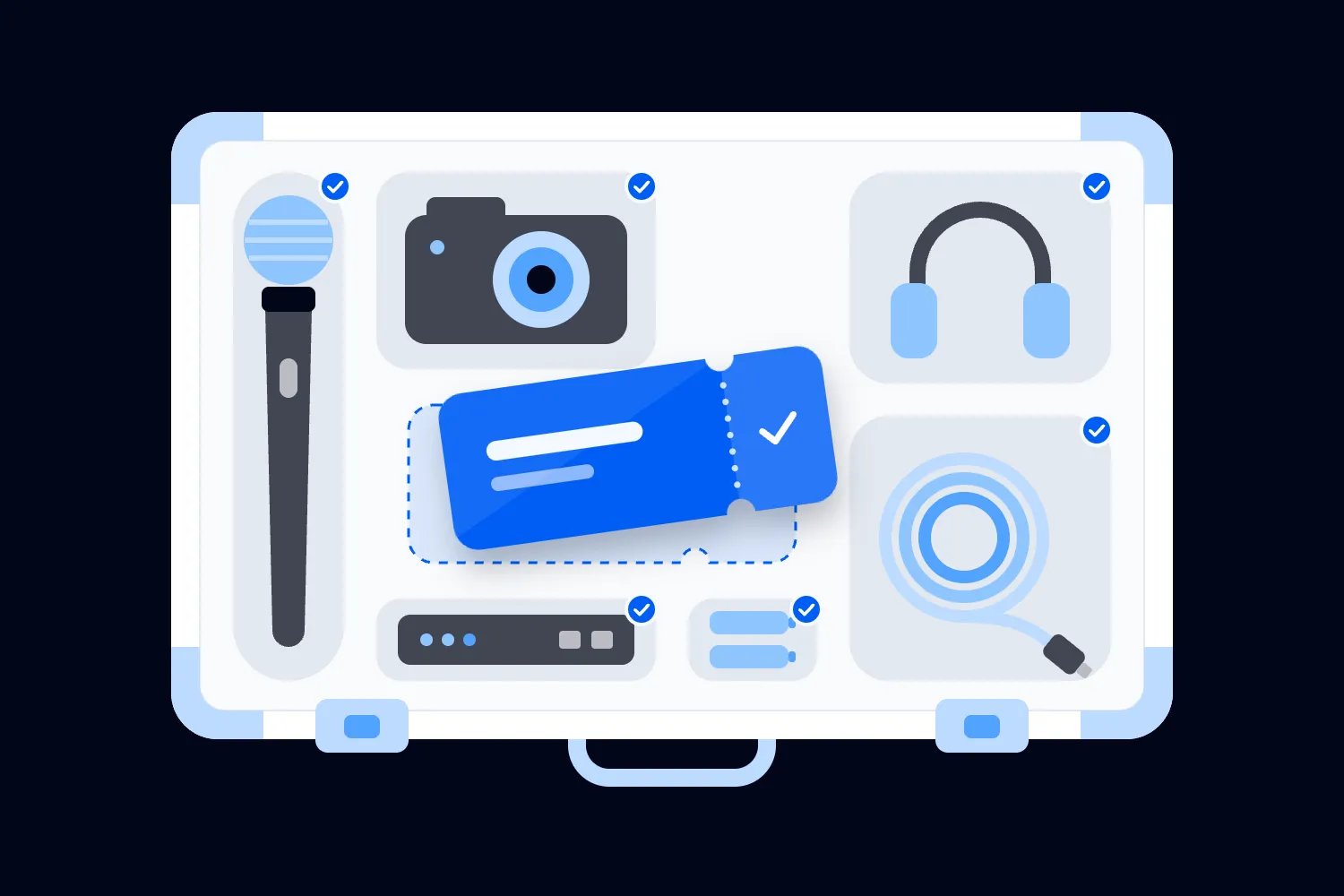
Use this list to brief the supplier. Each item needs a quantity or requirement, a named owner, and a test. You don't need to buy everything yourself. You do need to know who supplies it and how you confirm that it works.
Presenter microphones suited to the programme, plus a tested spare.
Audience microphones for any questions included in the broadcast.
A sound mixer with separate feeds for the room and online audience.
An audio interface or other agreed connection between the mixer and streaming system.
Monitoring headphones for the person checking the stream.
Cameras, lenses, supports, power supplies, and the correct video cables.
A direct slide feed and a way to switch between speakers and slides.
Lighting that makes presenters clear on camera without disrupting the room.
A streaming computer or hardware encoder with compatible inputs.
A separate device for checking what a paying viewer receives.
A wired internet connection, agreed network access, and a tested backup.
Venue-approved power distribution, cable protection, and charging arrangements.
Recording storage, plus a clear process for checking and copying files.
Captioning arrangements and a viewer test for captions.
Crew communications, a running order, and a visible session timer.
Spare cables, adapters, batteries, and recovery instructions for likely failures.
Treat that as the starting list. An equipment list without the event format is still incomplete. For each session, mark whether you need live speech, recorded video, slides, audience questions, remote speakers, or private discussion. That becomes the basis for the quote.
Get the audio right first
If you have to choose between another camera angle and making every question audible, choose the question. Online ticket holders can follow a talk with an ordinary picture. They can't follow words they never receive.
Ask the sound engineer how each voice reaches the online audience. A presenter microphone is only the start. You also need to capture panelists, the host, audience questions, and remote contributors when they are part of the programme. Shure's guidance on livestream audio explains why microphone coverage and echo control matter when local and remote participants share a conversation.
Choose microphones around behaviour. A handheld works when the speaker will hold it properly. A headset suits a presenter who moves and demonstrates. A lectern microphone suits someone who stays at the lectern. Agree the choice with the engineer and rehearse with the actual speaker. Nobody should discover on stage that turning their head makes their voice disappear.
For questions, use a roving microphone or a staffed question point. Tell the host to wait until the person has the microphone. If that can't happen, the host should repeat the question into their own microphone before the answer starts. Make this a cue in the running order, rather than a hope that everyone remembers.
The room and the stream need separate attention. Sound that fills the venue can still arrive too quietly online. Ask for a stream feed that includes every relevant microphone and any playback audio. Then check that feed on headphones, on the viewer device, outside the room. Listening beside the loudspeakers can hide a silent stream.
Remote speakers add a return path. Their voice has to reach the room, while the sound sent back to them must avoid feeding their own voice into a loop. Your engineer may call the separate outgoing feed a mix-minus. Ask them to demonstrate it with the remote presenter speaking and the host responding.
Don't try to solve routing problems by randomly muting computers during the show. Decide which device handles the remote connection, which handles the broadcast, and which devices are allowed to play sound through speakers. Put headphones on monitoring devices where appropriate.
Your audio acceptance test is straightforward. Have the quietest presenter speak normally, play any video used in the programme, take a question from the back, and exchange questions with the remote guest. The person checking online must hear all of it clearly. Fix failures before testing camera moves.
Choose cameras around what viewers need to see
Start with the view that carries the content. For a seated conversation, viewers need recognizable faces and a clear view of whoever is speaking. For a demonstration, they need to see the object or action. A wide shot of the entire stage won't show the detail in someone's hands.
A single camera can be enough for a simple talk when the presenter stays within a planned area and the slides arrive directly. More cameras are useful when they solve a specific problem, such as following a panelist, showing a demonstration, or covering a room question without leaving viewers staring at an empty lectern.
Before approving the camera position, stand where the presenter will stand. Check the actual framing. Then sit where attendees will sit. You don't want a camera blocking a paid seat, a tripod in an access route, or an operator constantly walking through the sightline.
Ask the supplier to confirm continuous operation for the full session. Check camera power, heat management, output compatibility, and any restrictions on how long the selected setup can run. Use the actual camera and capture connection in the rehearsal. A successful short phone clip proves very little about a live production.
Give the presenter a clear movement area. If the camera is fixed, the presenter needs to know where the frame ends. If an operator will follow them, rehearse the movement and the handoff between slides and the camera. This is especially useful when a demonstration changes height or moves away from the lectern.
Lighting should make the face and relevant objects visible. Ask the supplier to test the image under the lighting planned for the session, including changes used for performances or videos. A stage can look dramatic in person while the camera sees a silhouette. Check the picture, then adjust the lights or position.
Avoid buying resolution for the sake of a bigger number. The online audience needs a stable picture and readable content on the devices they use. A higher resolution can add demands on processing, bandwidth, storage, and playback without fixing poor framing. Ask which setting the supplier recommends for this programme and why.
Send the slides directly
Don't make paying online viewers read a projection screen through a wide camera shot. Give the streaming system a direct feed of the slides, or another tested way to show them clearly. Keep a presenter view available when facial expression or a demonstration adds something useful.
Check every connection between the presentation laptop, room display, and production system. Write down which adapters are required and who provides them. An adapter that fits physically may still fail to send the expected picture. Test the whole chain with the event laptop, rather than a convenient substitute.
If speakers bring their own laptops, agree the process beforehand. They may need particular fonts, software, or videos. Decide whether the producer will collect files, whether speakers can use their own machines, and how a change gets checked. A surprise laptop swap can affect slides, audio playback, and the camera switching plan together.
Play embedded videos during rehearsal. Confirm that the online audience hears the video once, at a sensible level, and sees the intended content. A silent video or overlapping audio often comes from a connection the team never tested as a complete system.
Ask presenters to review slides on an ordinary laptop screen. Tiny labels, low contrast, and dense charts get harder to follow when the image is compressed or reduced. The audience shouldn't need to lean forward and guess the number the presenter is explaining.
Prepare a clean copy of the deck and a backup on another available device. Also prepare a simple holding slide with the event name and support instructions. If a presentation crashes, the producer needs something useful to show while the host keeps the audience informed.
Specify the streaming system as a complete chain
The encoder turns the production feed into the stream sent online. That may be a computer running software or a dedicated hardware unit. Ask the supplier to choose a system that works with the cameras, audio connections, viewing service, and recording plan.
The useful question isn't whether the laptop is powerful. It's whether that exact laptop can run this exact show without dropping audio, stuttering, overheating, or running out of storage. Test it while switching views, playing slides and video, receiving remote speakers, and recording if that is part of the setup.
OBS Studio's official quick start guide covers setting up sources, selecting audio devices, and testing output before going live. If your team uses it, follow that process with the production equipment. Software being free doesn't remove the need for a competent operator.
Prepare the views you actually need. That might include the presenter, full-screen slides, presenter beside slides, a remote guest, and a holding message. Label them clearly. Keep personal desktops, private messages, and unrelated browser tabs away from any captured display.
The person operating the stream should know how to switch to the holding message, stop unwanted audio, restart a source, and continue recording where possible. Put those steps in a short recovery sheet. During a failure, a familiar written instruction beats somebody searching a settings menu from memory.
Confirm access before event day. The producer needs the correct account permissions and any credentials required to start the broadcast. Decide how those details are shared securely and who can recover access. Don't put stream credentials in a public running order or a sponsor briefing.
Your final monitoring device should show the same viewing page and access process as the buyer. Watching the local camera preview won't tell you whether the broadcast reached the service, whether the ticket holder can enter, or whether the captions arrived.
Treat internet as a production requirement
Ask the venue for a production connection, not reassurance that it has fast Wi-Fi. Explain what you are sending, what remote speakers will receive, and which other production devices need the network. Get the connection details and the contact responsible for them in writing.
Use wired internet for the main production machine where available. Confirm where the connection terminates, how you reach it, and whether the venue permits the required traffic. A connection behind a login page or a restriction the producer can't change can stop the show before any bandwidth question matters.
Google's live encoder recommendations show that streaming settings depend on resolution, frame rate, and encoding choices. Use the current requirements for your actual viewing service. There isn't one internet speed that suits every hybrid event.
Test upload performance at the intended production position under conditions that resemble the event. A speed test in an empty foyer doesn't prove the network will support the show when exhibitors, attendees, and staff connect. Ask what capacity is reserved for production and whether other traffic can consume it.
Then test a sustained broadcast with the selected settings. Have an offsite person watch for interruptions while the producer checks the output. Where the system reports dropped frames or connection warnings, record them and resolve their cause. Don't dismiss a problem because the venue display still looks fine.
Agree a backup connection and test the changeover. A mobile connection needs usable coverage inside that room, enough data for the intended use, and a person who knows how to switch. Ask whether the backup shares any failure point with the main connection.
Keep the response realistic. A backup may preserve a simpler broadcast rather than every feature. Decide whether to reduce the picture quality, continue with audio, pause the session, or offer the recording afterwards. Confirm that the viewing service supports the fallback you choose.
Tell the host and support team what to say if the connection fails. Online ticket holders need an update through a channel that doesn't depend on the broken stream. Prepare that message before the event, including the next update time or replay plan you can genuinely deliver.
Plan power, cables, and recording storage
Walk the room with the venue and supplier. Mark where production equipment sits, where power comes from, and where cables run. Keep access routes and attendee movement in that plan. A cable that reaches the camera still needs a safe route to get there.
The UK's Health and Safety Executive guidance on event electrical safety covers selecting and managing electrical equipment and protecting cable routes. Use qualified people and the requirements that apply where your event runs. The organizer's job is to arrange competent work and confirm responsibility, rather than improvise an electrical installation.
Agree which equipment needs uninterrupted power and what happens if its supply fails. If the supplier proposes battery backup, ask what devices it supports and for how long under the actual load. A backup powering only a computer may leave the cameras, mixer, or network equipment unavailable.
Label both ends of production cables. Keep tested spares close to the devices they serve, with adapters identified by use. During a failure, nobody should have to empty a box of anonymous cables to find the one that fits the capture unit.
For recording, confirm the format, expected file size, available storage, and who checks free space. Record a test, play it back, and confirm sound and picture. Starting a recording is a task. Verifying the file is a separate task that someone has to own.
If a recording is part of the ticket promise, agree a second copy and when it is made. Avoid assuming that a stream archive will always cover a local recording failure. Confirm what the viewing service stores and how the team retrieves it.
Put captions and participation on the equipment brief
Accessibility affects what you book, how you route audio, and how you design the viewing page. Ask what attendees need during registration, then confirm the arrangements early enough to test them. Don't wait until the event is live to discover that captions only appear to the host.
W3C's live caption guidance explains the requirement for captions under WCAG success criterion 1.2.4. Captions communicate speech and relevant audio information. Arrange a method suited to the content, then check it through the attendee view.
Give the captioning team speaker names, specialist terms, and the running order. Test their audio feed. Where automated captions are used, check how they handle the speakers and vocabulary in this programme. A feature being switched on doesn't prove that the resulting text is useful.
Keep slide content and captions visible together. Check the page on a smaller screen and at the viewing sizes attendees may use. If essential labels disappear behind captions or controls, change the layout before the rehearsal is signed off.
Participation needs its own checks. Can an online attendee submit a question? Can the moderator see it? Does the host receive it without reading an unrelated chat window? Rehearse one question through the entire process and confirm that the response reaches both audiences.
Use an online moderator for an interactive paid session. Give them a direct route to the producer and a separate support process. Someone answering password problems can't reliably follow a fast panel discussion at the same time.
Book the crew and the rehearsal together
Equipment has no idea which speaker is next. Your crew does. Agree who owns room audio, camera switching, streaming, online moderation, and attendee support. Some roles can be combined for a simple show, but check whether their tasks collide during the busiest part.
Ask a practical question during planning. When the remote guest disconnects while a venue attendee asks a question, who handles each problem? If every answer is the same person, simplify the show or add support. Don't sell an interactive experience that depends on one operator doing impossible things.
Give the team one running order with speaker entrances, slide changes, video playback, breaks, questions, and recording cues. Include who calls each cue. Collect final materials early enough for the producer to check them, and agree how late changes are approved.
During rehearsal, put a person outside the venue through the paid attendee experience. They should open the access instructions, enter the viewing page, listen, read slides, enable captions, and ask a question. Have them describe problems in ordinary words. They're testing the product the buyer receives.
Rehearse transitions as carefully as speeches. Check the move from holding slide to host, host to presenter, presenter to remote guest, and session to break. Confirm what online attendees see while people in the venue leave their seats.
Finally, rehearse the failure you are most worried about. Disconnect the presentation source in a controlled test, switch to the spare microphone, or test the backup connection. Record what worked and change the instructions where they were unclear.
Compare supplier quotes against the same job
Send every supplier the same brief. Include the programme, room layout, online ticket promise, remote speakers, accessibility arrangements, recording deliverables, and venue network details. Ask them to state assumptions and exclusions alongside the equipment and crew.
Compare complete costs. Include delivery, setup, rehearsal time, technicians, overtime terms, network provision, captioning, recording, editing, and collection. A cheaper equipment total can become a more expensive event once the missing work appears.
Ask what happens if the programme changes. Extra rooms, longer sessions, additional microphones, and late video files can affect staffing and equipment. Agree the change process before the producer starts receiving requests from speakers and sponsors.
Match each proposed addition to a buyer benefit or a production requirement. An extra close-up camera might make a practical demonstration understandable. A decorative camera angle might add little. Ask the supplier to explain the difference in this programme, then decide where your money works hardest.
Keep ticket operations in the same commercial plan. With Loopyah's ticketing tools, you can create ticket types and manage ticket sales. Define what each ticket includes clearly, and test the handoff to your chosen viewing service. Your streaming setup still needs its own equipment, supplier, and access checks.
Use attendee email segments to send the right instructions to the relevant ticket holders. Online buyers need viewing access and support details. Venue attendees need arrival instructions. If someone changes ticket type, check what they receive next rather than assuming the earlier message covers them.
Check what is actually included in the hire
Before accepting the quote, ask for a written equipment schedule that names the supplied connections and accessories. "Camera package" doesn't tell you whether it includes a tripod, mains power, a usable lens, the cable length you need, or an operator. "Streaming laptop" doesn't tell you whether anyone has checked its capture device against the camera output.
Have the producer review that schedule with the venue technician. Identify what the venue provides and what the supplier brings. If both assume the other provides the connection between the sound mixer and streaming computer, the equipment can arrive exactly as quoted and still fail to broadcast speech. Close those gaps while there is time to change the order.
Check cable distances against the planned layout. Ask the supplier to specify the appropriate cable and any conversion equipment for the route. Don't measure straight across the room when the cable needs to follow walls, pass through an approved opening, or avoid an access route. Show the actual route on the plan.
Confirm the compatibility of every handoff. The camera sends a picture the capture device accepts. The presentation laptop sends the expected display and playback audio. The mixer provides a feed the receiving device can use. The encoder sends a stream the viewing service accepts. Ask the supplier to own those checks as a complete chain, rather than approve each box separately.
For hired wireless microphones, ask who manages the frequencies and checks any permissions required locally. Tell the supplier about other microphones and wireless systems that will operate nearby. Have them coordinate the setup and test it in the venue. Buying batteries doesn't solve interference, and turning everything on at doors is a poor time to find it.
Agree the spare equipment by failure, rather than by an impressive list of extras. If the presenter microphone fails, which microphone replaces it? If the slide laptop fails, where is the backup deck? If the capture device fails, what picture can the operator still send? Confirm that each spare is usable with the remaining setup.
Also check who can collect, install, and return the equipment. If your team is taking a hire package without technicians, name the person qualified to set it up and give them access time. A box arriving at reception doesn't mean the broadcast is ready. Include collection deadlines and any late return charges in the production plan.
At handover, photograph the approved setup for your internal records and keep the final equipment schedule beside the running order. Have the producer explain the recovery controls to whoever will cover their breaks. Finally, agree how damaged or missing items are recorded when the supplier collects. That avoids sorting out a disputed cable after everyone has moved on to the next event.
After the event, ask the producer which equipment earned its place and which stayed unused. Record actual problems and successful recoveries while the details are fresh. That gives your next supplier brief a useful starting point and helps you avoid repeating expensive mistakes.
Sign off what the buyer will receive
Before doors open, get a named person to confirm each promised part of the online ticket. The sound reaches the attendee. The slides are readable. Captions work as arranged. Questions reach the host. Support knows how to respond. Recording has been tested if you sold a replay.
Keep that signoff beside the running order. When something changes, the producer should know which checks must be repeated. Swapping a laptop can affect slides and sound. Moving a camera can affect framing and cable routes. Small changes deserve the tests they actually disturb.
Build the hybrid event equipment checklist around the ticket promise, then prove the complete experience from outside the room. Spend first on clear sound, readable content, reliable delivery, and people who can keep the show moving. Your online audience paid to attend. Make sure they can.

Author: By the Loopyah Content Team
The Loopyah Content Team shares expert insights, practical guides, and industry updates to help event organizers create unforgettable experiences and stay ahead in the event planning world.