· 28 min read
How to prevent presentation problems when speakers bring their own laptops
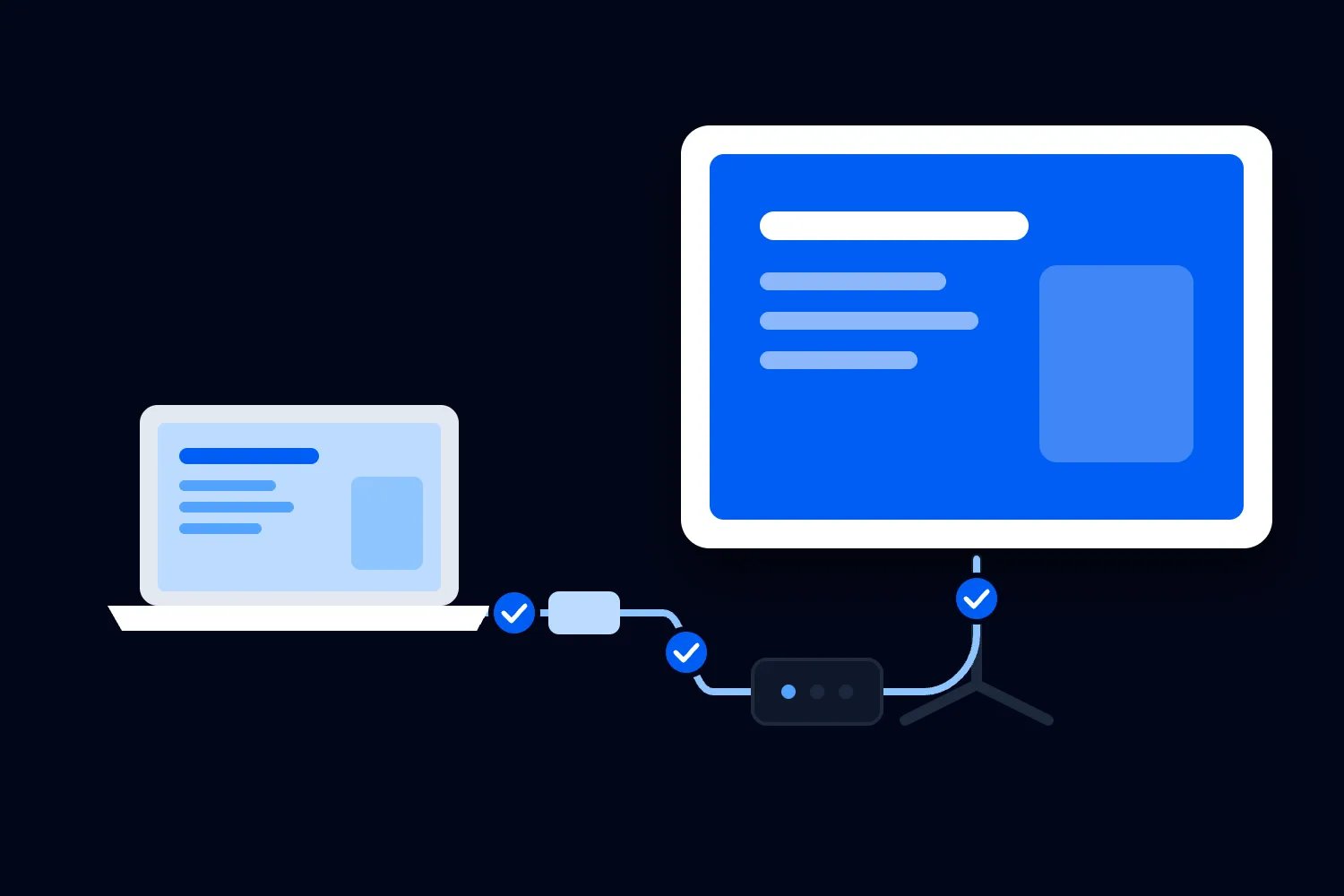
Your next speaker plugs in a laptop. The first slide appears, everyone relaxes, and then the demonstration starts without sound. The speaker changes a setting, their notes appear on the audience screen, and the next session is getting closer while somebody looks for another adapter.
You can prevent a lot of this by agreeing how each presentation will run before the speaker arrives. Use an event computer for ordinary slide decks where you can, approve personal laptops for sessions that need them, and test those devices through the actual room equipment. Every approved setup also needs an alternative the speaker and crew know how to use.
A live software demonstration may need a particular machine, while a keynote can run perfectly well from a checked file. Your job is to find those differences early enough to prepare for them, then make sure a last-minute laptop change doesn't quietly replace the setup you tested.
This guide gives you a conference presentation laptop checklist, a speaker brief you can adapt, and a worked example of fitting the checks into a real production timetable. It's written for paid conferences and workshops, where a session's usefulness is part of what people bought. The example event and its timings are fictional planning choices, not recommended minimums or industry benchmarks.
Decide which sessions actually need a personal laptop
Start with the presentation, rather than the connector. Ask what the speaker needs to show, who advances it, whether it uses sound, and what requires an internet connection. A slide deck with still images has different demands from a software demonstration with a login, a video call or a live audience exercise.
For an ordinary deck, my preference is a checked copy on an event computer. The operator can prepare the right file before the speaker reaches the stage, and you avoid changing computers simply because the name on the programme changes. The speaker still needs to rehearse with the clicker, notes arrangement and playback sequence they'll use.
A personal laptop can be the better choice when moving the presentation would remove something essential. That might be specialist software, a licensed application, a carefully prepared demonstration environment, or an access tool the speaker relies on. Ask the speaker to explain the requirement. "I always use my own laptop" is a starting point for a conversation, rather than enough information for the technical team.
Don't solve a compatibility concern by making the speaker's experience harder. Someone who needs a particular control device or screen arrangement should discuss that privately with the appropriate event contact. Find a workable setup together, test it, and tell the operator what they need to prepare without circulating unnecessary personal information.
Record the agreed presentation source against each session. "Event computer, checked deck" and "speaker laptop, approved demonstration" are useful descriptions. "Laptop provided" isn't, because it doesn't tell the room operator whose computer will be connected or what they should load.
Put that choice in your event production brief. The brief sets the supplier's overall job; the laptop checklist gets specific about the files, devices and handovers within it. If your supplier has priced an operator running one event computer, a programme full of personal-device changes needs another conversation about time, equipment and staffing.
Ask for the information your crew will use
Send speakers a short technical form while there is still time to act on the answers. Ask for the laptop's exact model, operating system, presentation application and version, connection ports, and the charger they intend to bring. If they're using an adapter or dock, ask for its model too. A photograph can help the crew identify a connection, but it doesn't replace the specifications.
You also need to know whether the session contains videos, audio, browser content, live demonstrations, polls or other applications. Ask which parts must run live and which could be shown another way. A speaker may be happy to submit a recorded walkthrough once they understand that it protects the explanation they want attendees to hear.
Ask about speaker notes and control. Will the presenter advance slides from the lectern, use a wireless clicker while walking, or ask an operator to advance on spoken cues? Do they need to see the next slide? Do they need to type? Those answers affect laptop position, monitor arrangements and the crew's work during the session.
Keep audience-facing content separate from private preparation. Speakers may have notes they don't want recorded, a demonstration account with confidential information, or material they're allowed to show but not distribute. Ask what can be displayed, recorded and shared, then record the agreed restrictions with the relevant files.
The speaker agreement is where you settle deliverables and permissions. The technical form should point to those decisions rather than inventing new rights. Receiving a slide deck for testing does not, by itself, tell your team whether they may publish it to ticket holders afterwards.
Make the form manageable. Give a named contact and let speakers flag something they can't describe accurately. You want a useful conversation with the person giving the talk, not a confidently completed form that conceals an untested assumption. When an answer changes the room setup, have the technical lead confirm what will be supplied and when it will be checked.
Publish a speaker brief with clear submission rules
Speakers need one current set of instructions. If your programme manager requests one file type, the venue asks for another and the audiovisual supplier sends a third deadline, people will make their own interpretation. Agree the workflow internally first and send speakers the version everyone will follow.
Use the following brief as a starting point. Replace the choices with your own supplier's confirmed requirements, so the speaker knows exactly what to submit and what to bring.
Presentation and device details
Confirm your session title, room and programme time with our speaker contact.
Tell us whether you will use our event computer or need your own laptop, and explain any software or access requirements that affect that choice.
For an approved personal laptop, provide the model, operating system, presentation application and version, output connection, adapter and power requirements.
Tell us how you will advance slides, use notes, play media and move between applications.
Flag any audience participation, remote contribution or internet-dependent demonstration before we agree the setup.
Files and deadlines
Submit the presentation through the agreed upload route by the stated deadline. We will confirm receipt separately from technical approval.
Include the editable presentation where agreed, a PDF for reference, and the media files the technical lead requests.
Identify videos, sound, unusual fonts, animations and external links that need checking. Tell us which elements are essential to the session.
Use the event's session identifier and version rule in file names. Tell us explicitly when a new file replaces an earlier one.
Send corrections through the same contact after the deadline. Please don't hand an unapproved replacement directly to the stage operator.
Testing and the day itself
Attend your assigned technical check with the device, charger, adapter, control device and files you plan to use on stage.
Be ready to show the beginning, media, application changes and ending of your presentation, including your agreed alternative.
Confirm which material can be recorded or distributed. Remove private information from demonstration accounts and audience-facing screens.
After approval, tell the technical lead before changing the laptop, adapter, presentation version or playback method.
If something fails during the session, follow the recovery plan agreed with the host and operator.
Give actual dates, times, time zones, upload instructions and contact details when you send this. "Slides due Friday" becomes ambiguous when an overseas speaker is travelling and your operator starts checking files on Friday morning. A deadline needs to leave enough time for the work that follows it.
Explain why you are collecting a PDF as well as an editable deck. It's a reference for appearance and may support a simplified presentation, but it won't preserve every animation, video or interaction. It also shouldn't automatically become the only handout for attendees. Decide those uses separately rather than calling the PDF a complete backup.
Check the connection through the whole room setup
An adapter fitting the laptop is only the beginning. The technical team needs to check the path from that computer through any switching or conversion equipment to the audience display. A laptop connected directly to a small monitor at home hasn't demonstrated that the conference room will show the same result.
Apple's guidance on connecting displays to a Mac tells users to identify the ports and check their model's display capabilities. It also notes that supported display combinations depend on the model and display settings. Give your supplier the actual machine and adapter details so they can check the required arrangement instead of treating every similar-looking port as interchangeable.
Ask the supplier to confirm the output setting the room expects and the connection it will provide. Resolution describes how many pixels make up the image; refresh rate describes how often it updates. You don't need to choose these yourself, but you do need the technical lead to settle them with the speaker before rehearsal.
Check the image with representative slides. Look for missing edges, stretched content, small text and anything hidden behind a caption area or other on-screen information. The right test is whether attendees can use the content from the seats they'll occupy. A desktop wallpaper filling the screen doesn't answer that question.
Include the laptop's position and physical access. A speaker who needs to type can't do that if their computer is at the back of the room. Conversely, putting every laptop on the lectern may complicate changes and leave the operator unable to help. Agree where it goes, who connects it and how the speaker reaches its controls.
Have the supplier and venue manage power and cable routing within their agreed responsibilities. Tell them about chargers, docks and other devices early. Don't add an improvised extension across a walking route because a battery is low. The speaker brings their charger; the event team arranges a suitable approved place to use it.
Test notes, sound and media as separate requirements
A successful first slide can hide several different problems. The audience image, speaker notes, clicker, computer sound and video playback each need checking. Write down the result of each check so a passing screen test doesn't become a general claim that the presentation is ready.
Microsoft's explanation of presenting on multiple monitors distinguishes the audience slideshow from Presenter View, where the speaker can see notes privately. It also describes display behaviour changing when a show starts or ends. Rehearse those transitions on the installed setup, including what appears after the final slide, rather than checking only the middle of a presentation.
Ask someone to watch the audience screen while the speaker starts, moves between applications and finishes. The operator and speaker can be looking at perfectly sensible screens while attendees see the wrong one. Check the private notes arrangement deliberately, particularly if the session is also recorded or streamed.
For sound, play the actual media through the room system at an agreed level. Listening to the laptop's own speakers proves very little about what attendees will hear. Ask the audio operator to confirm the route to the room and any separately agreed recording, streaming, captioning or listening services. Those destinations can have different connections, so get an answer for each one you bought.
Microsoft's supported media format guidance recommends MP4 video encoded with H.264 video and AAC audio for PowerPoint. Give that recommendation to speakers using PowerPoint, then have the technical team test the delivered files in the actual application and version. The file ending alone doesn't describe everything about how a video was encoded.
Avoid assuming that a media preview behaves like the live slideshow. Check what triggers playback, whether a click advances an animation or starts the clip, and what happens when the clip finishes. If the operator is playing a separate video, agree the speaker's cue and the slide to return to. An ordinary sentence such as "Please play the demonstration now" can be more useful than an elaborate cue the speaker won't remember.
Check what moves with the file and what stays on the laptop
A presentation can depend on things that aren't inside the file you received. Ask the speaker about fonts, linked media, browser pages, local folders and applications. Moving the deck onto an event computer changes its surroundings, even when the deck itself is unchanged.
Microsoft explains the distinction between embedded and linked video. Embedding stores the video in the presentation, while a linked file remains separate and its link can break. Microsoft recommends keeping linked videos in the same folder as the presentation. Have your operator check the submitted package after transfer, including playing the media from its approved working location.
Don't repair a missing font without asking the speaker to review the result. A replacement can change line breaks, labels and the way a diagram reads. Open a representative selection of slides, including the most detailed ones, against the speaker's reference copy. If a change affects meaning, return it for approval rather than accepting a deck that merely opens without an error message.
For a personal laptop, make the preparation equally specific. Ask the speaker to download the files they'll need, complete ordinary application preparation before their check, and tell the technical lead about any managed-device restrictions. A corporate laptop may require its own support team to approve software or settings. Plan around that rather than asking the room operator to override the organisation's controls.
Add a check of power, sleep and notifications. With the speaker's permission, confirm that the laptop will stay awake through the session under the organisation's approved settings, that its charger works in the agreed position, and that private notifications won't appear on the audience screen. Test a pause as well as continuous slide advancing. A computer that stays awake while somebody presses a key may behave differently during a long discussion.
Leave application installations and planned updates to the preparation period, with the device owner's support team involved where needed. Don't start a major update at the lectern or ask someone to turn off security controls to make an unfamiliar device work. If a managed setting prevents the planned presentation, agree a supported solution or use the checked alternative. Tell the operator if the laptop is unplugged or moved after testing so they can confirm the charger and connection again.
After a successful check, avoid casual changes to the setup. An untested dock borrowed at breakfast is a different arrangement from the adapter used in rehearsal. Replacing the laptop is a different arrangement too. The point isn't to ban useful changes; it's to make sure somebody recognises when an earlier test no longer answers the current question.
For recordings, ask what the audience feed actually contains. A useful in-room session can still produce an incomplete replay if the recording never captures the demonstration screen or computer audio. Make a short test recording and have the relevant operator review it where that is part of your production scope. Don't infer recording readiness from a working projector.
Give live demonstrations a credible alternative
A live demonstration deserves more preparation than an ordinary deck because several things have to work together. The application, account, network, data and speaker's actions all affect the result. Ask the speaker to identify the part the audience needs to understand, then decide how to preserve that explanation if the live sequence fails.
For many sessions, a recorded walkthrough with the speaker explaining it is a useful alternative. For others, selected screenshots and a prepared example will do. A workshop in which attendees must practise a task may need a more substantial change. Decide whether the alternative still delivers what buyers were promised before calling it acceptable.
Treat internet access as a defined production requirement. Tell the venue or network supplier which device needs access, what the demonstration does and when it will be tested. If the session needs a particular site or service, test that service through the agreed event connection. A general speed test doesn't prove that the account, permissions and application workflow will behave as expected.
Use demonstration accounts and suitable sample information where possible. Close unrelated applications and notifications before the session. Let the speaker handle their own login and authentication; the event team shouldn't collect their password in a technical form. If the workflow needs access approval or a second device, include that in preparation without exposing credentials to the audience.
Test the alternative with the network unavailable if independence from the network is what you are relying on. A video saved only in a cloud folder can share the same problem as the failed demonstration. Likewise, a second browser tab is not a separate working option when both tabs require the unavailable service.
Write the change into the running instructions. The host needs to know whether to ask a prepared question, invite the speaker to explain a screenshot, or introduce the recorded walkthrough. The operator needs to know which source to show. Your speaker should be able to continue without negotiating a new plan in front of ticket holders.
Protect accessibility when you change the presentation method
The easier technical option isn't automatically the usable one for every attendee or speaker. Moving to a different laptop can affect access tools, captions, notes and media. Include the people responsible for those services in the decision when the change touches their work.
W3C's accessible presentations guidance recommends providing materials in advance to participants, interpreters and captioners as needed. It also covers readable projected content and accessible media. Use that guidance to prepare the content and coordinate the services; a laptop checklist alone doesn't establish that your event meets every applicable accessibility requirement.
In practice, ask the captioning provider how they receive speech and computer audio, and how their output reaches attendees. Confirm what happens when the operator changes presentation sources. If captions appear with the slides, check that the alternative file or video doesn't cover them. If they're shown elsewhere, make sure the change doesn't remove the feed that service needs.
Treat the emergency PDF as one presentation option, not a universal access solution. W3C also cautions against supplying material only in formats users cannot readily adapt, including PDF. Arrange suitable participant materials separately and tell the speaker which version will be shared. A visually faithful projection copy and a useful accessible handout can be different deliverables.
When the speaker uses an alternative demonstration, ask them to describe what matters rather than repeatedly saying "you can see it here". If a video contains information communicated only in sound or only in pictures, work out how participants will receive that information. Keep the agreed explanation with the alternative so it survives a last-minute operator change.
Make room for a speaker to practise the setup they need. A rushed check may confirm that a screen works while leaving the presenter unable to read notes comfortably or reach the keyboard. Discuss those requirements before allocating the rehearsal schedule, so a speaker doesn't have to disclose them while the next person waits behind them.
Plan enough time to test the programme you've booked
Start with the checks, then put them into the timetable. Don't take the remaining gap before doors and assume it will cover whatever the speakers bring. Some devices may pass quickly, while one demonstration can require a change and another attempt.
For a fictional paid conference, imagine a main room with six talks. Four speakers agree to use the event computer, and two need their own laptops for demonstrations. The room equipment is installed and its basic technical checks are complete before speaker testing begins. That distinction matters: the speaker appointments are not also the time to build the sound system.
The production lead initially allocates ten minutes to each event-computer session and twenty minutes to each personal-laptop demonstration. Four times ten is forty minutes; two times twenty is another forty. That's eighty minutes of planned checking, before allowing for faults, crew breaks or a rehearsal of the handovers. These are invented estimates that the supplier must replace with a realistic plan for the actual sessions.
If the only available window is 08:00 to 08:45, forty-five minutes cannot accommodate that eighty-minute plan. You are short by thirty-five minutes before any recovery allowance. Telling every speaker to arrive at eight won't fix the shortage when one operator and one room setup are doing the checks in sequence.
For this example, the team agrees access for speaker checks the previous afternoon, from 15:00 to 17:00. That's a 120-minute window. The eighty minutes of appointments leave forty minutes for resolving issues and rehearsing changes, provided those tasks and staff availability really fit. If an issue needs longer, the production lead must revise the plan instead of treating the unused minutes as a guarantee.
Don't add a second testing desk and assume you've doubled useful capacity. A separate station can help identify file and adapter problems, but it doesn't necessarily reproduce the main room's display, sound, switching and recording arrangements. Decide which preparation can happen elsewhere and which final checks still require the installed room.
Use the production schedule to secure access and crew coverage, then test the actual transitions between sessions. Our guide to conference room turnaround covers the wider gap needed for attendees, room resets and reopening. The laptop change is one part of that job; it can't consume time already needed for people to leave safely and the next audience to enter.
Keep a session record the next operator can understand
Your technical lead may remember every detail of rehearsal. The person covering their break won't. Keep a short record for each session in the room's approved working documents, and make sure it describes the setup that actually passed the check.
For the fictional conference, the record for the second personal-laptop demonstration might read as follows. These entries illustrate the information to collect; the equipment labels, file names and decisions must match your own event.
Session: S06, main room, Taylor's software demonstration. Programme time and speaker contact are recorded in the current running order.
Approved source: Taylor's laptop with the adapter used at the technical check. The technical lead records the exact model and adapter in the equipment notes.
Audience display: the agreed demonstration screen. Speaker notes and unrelated applications stay off the audience feed.
Control and sound: Taylor operates the keyboard; the room operator handles the separate recorded walkthrough when requested. Both sound routes have been checked.
Approved alternative: local walkthrough file "S06-Taylor-demo-v3.mp4" on the event computer, with the agreed captions and return slide.
Recovery decision: the production lead decides when to switch. Taylor uses the agreed spoken cue, and the host explains the change if needed.
Remaining restriction: attendee records must not be opened during the demonstration. The prepared sample account is the approved version.
Approval: record who checked the setup, when they checked it and which changes would require another check.
This record doesn't need every email that led to the decision. It needs enough information for the operator to choose the right source and follow the recovery plan without guessing. Keep sensitive account details elsewhere with restricted access. A room crew needs to know which demonstration account is approved, not the password that opens it.
Give the speaker a chance to read the parts that concern them. They may spot that you recorded the wrong return slide or assumed they would advance a clip themselves. Correcting that before the session is easier than asking two people to reinterpret the cue while the audience waits.
Rehearse the change between two different laptops
A speaker can pass an individual check and still create an awkward handover. Rehearse the sequence from the outgoing session's final moment to the incoming speaker's first usable slide. Include the host, operator and whoever connects the device, because each person sees a different part of the transition.
Agree what attendees see while the computer changes. That might be an event holding slide or another approved source. The operator should know when to stop showing the outgoing laptop so a desktop, private message or file search doesn't become the room's next visual.
Decide whether the incoming device can be connected and checked before it is shown to attendees. That depends on the supplied equipment and operating plan. If the supplier proposes switching between prepared sources, ask them to demonstrate the actual sequence. Don't promise seamless changes simply because the quote contains a device described as a switcher.
Include slide control in the handover. A clicker that controls the event computer may not control the personal laptop. Agree who moves any receiver, who checks it and what the speaker does if it doesn't respond. Keep a workable manual control option within reach where appropriate, and rehearse it without the speaker turning away from the audience to ask where the keyboard went.
Finish the rehearsal with the handback after the talk. The operator returns to the agreed source, the host continues, and the speaker retrieves their equipment when invited. Label personal items and confirm who holds them if they stay at the control position. A successful connection doesn't resolve custody of an expensive computer during the rest of the conference.
Record the result in ordinary language. "Personal laptop connected on approved input, notes private, clip audible, change to event computer rehearsed" is more informative than "AV checked". If a restriction remains, state it beside the session so the live operator doesn't have to discover it again.
Control late changes without arguing at the lectern
You will probably receive a correction after your deadline. Allow for that, but distinguish a corrected fact from a new technical requirement. Changing a speaker's job title is different from adding a video or replacing a checked slide deck with a live demonstration.
Give one content contact authority to receive changes and one technical lead authority to approve the delivery method. At a small event, one person may do both jobs. Speakers need a clear route to them, and the operator needs permission to decline a direct replacement that hasn't gone through that route.
Use a simple version rule. The slide file for Taylor's fictional demonstration might be "S06-Taylor-slides-v3.pptx", with the operator recording that version as approved. If a later file arrives, mark it received and pending review. Don't let "final", "final-new" and "final-actually-final" become the only clues to which copy should go on screen.
Review the changed parts and anything they affect. A replacement video needs playback and sound checks; a new demonstration may need another device, connection and recovery plan. The technical lead can explain what can be tested within the remaining time and what cannot. The production lead then makes the programme decision with that information.
If a speaker arrives with an unapproved computer, start with the checked option you already have. Ask whether the change is essential, what would fail without it and whether there is time to test it properly. Courtesy doesn't require the operator to make a promise the equipment and schedule haven't supported.
For a significant unresolved problem, decide whether to simplify, reorder, shorten or remove the session, and consider what attendees bought. A minor visual change and the loss of a practical workshop are different decisions. Involve the person responsible for the event's attendee commitments before presenting an inferior replacement as if nothing changed.
What if a speaker misses the check or you have no technician?
A travelling speaker may miss the previous afternoon's test. Ask about travel before assigning the appointment, and reserve another workable opportunity if the session requires it. In our example, the forty-five-minute morning window might accommodate one twenty-minute personal-laptop check, subject to the other work due before doors. It still cannot accommodate all eighty minutes of checking just because one speaker needs a new appointment.
Keep the checked event-computer option available where the speaker has supplied suitable files. If a necessary personal-laptop demonstration remains untested, the production lead must decide whether there is another access window, an acceptable prepared alternative or a programme change. Don't silently convert a missed appointment into approval.
For a small paid workshop without a dedicated operator, simplify what the presenter has to control. One agreed laptop and a presentation without device changes may be manageable if someone competent has checked the room and the presenter can operate it. Adding multiple computers, separate video playback and live audience tools creates jobs somebody still has to perform.
Ask the venue exactly what support the hire includes. A screen on the wall doesn't tell you whether anybody will be available to resolve a connection problem during your session. You may need to buy support, arrange a competent helper or reduce the programme's technical demands. Make that choice before selling a format your team can't deliver.
If the speaker is also the person troubleshooting, give the host or organiser a clear role in pausing the session and explaining the next step. An enthusiastic volunteer can help keep the timetable and locate an approved file; they shouldn't be expected to redesign an unfamiliar technical setup while ticket holders watch.
Write down what happens if the laptop fails on stage
Agree the recovery sequence before the audience arrives. The speaker should know when to stop troubleshooting, the operator should know which alternative to show, and the host should know how to explain the pause. Pick a troubleshooting limit that suits the programme and the fault; don't make up a universal number of seconds.
Start by distinguishing a private technical adjustment from a failure that needs a programme decision. An operator who can immediately select the correct source may not need the host to intervene. A computer that won't start or an application that won't open may require the checked alternative, a changed session order or a pause. Give someone authority to make that call.
A useful session record includes the approved source, approved file version, media cues, alternative source and the point where the speaker can resume. If the alternative is a PDF, identify what it omits and how the speaker will explain the missing material. If it is a local video, identify the start point, sound cue and return slide.
Test whether the alternative shares the failed component. Another file on the same dead laptop won't solve a dead laptop. A second computer that has never opened the file isn't ready just because it's in the room. Ask the operator to demonstrate the recovery you are paying for, including any time needed to move to it.
Tell the host to use a clear, accurate explanation. "We're switching to the prepared walkthrough" is useful if that is what you're doing. Repeated promises that everything will work in a moment make it harder to change course later. The host can keep attention on the session while the technical team follows the agreed sequence.
If the problem changes a room, session time or promised delivery, update the people affected. Loopyah's attendee email tools support event updates to ticket holders. Use them for a confirmed programme change, alongside immediate on-site communication where needed. The event team still decides what changed, what buyers need to know and how to address any undelivered part of the offer.
Keep the useful lessons for the next event
After the conference, record the faults that actually occurred and the preparation that helped. Was a linked video missing after transfer? Did a speaker miss their test because the invitation had the wrong time zone? Did the alternative work but lose the part of the session people had paid to learn? Those answers lead to different changes.
Ask the operator which checks were useful and where the schedule was unrealistic. Keep the approved instructions, technical results and change history with the event records, subject to the permissions and retention arrangements you agreed. Return personal equipment, restrict access to submitted files and remove copies when they are no longer needed under that arrangement.
Before sending the next speaker invitation, revise the specific instruction that failed. Request the missing media package, make the testing appointment explicit, or add the device change to the programme. Then confirm that the supplier's scope includes the work you've asked speakers to prepare for. Your next conference should start with a more accurate plan for the presentations it will actually deliver.

Author: By the Loopyah Content Team
The Loopyah Content Team shares expert insights, practical guides, and industry updates to help event organizers create unforgettable experiences and stay ahead in the event planning world.