· 21 min read
How to remove staff and supplier system access after an event
The event has finished. Your door team has gone home, the agency is preparing its final report, and finance still has payments to reconcile. Some people need to keep working. Others can still open systems even though their job ended when the last ticket was scanned.
Remove access when the person's work ends, while keeping the records and business ownership you still need. That means checking individual accounts, shared passwords, connected services and downloaded copies separately. Deleting a name from the ticketing team won't necessarily deal with everything else they used.
The first thing you want to do is identify who owns the closeout. Give that person authority to coordinate the system owners, accept handovers and follow up on anything unfinished. Otherwise, each supplier can finish its part while you assume somebody else has closed the accounts.
This guide walks through that process for a paid event, including the awkward exception where a contractor genuinely needs another week to complete settlement. The examples are fictional operating situations. The suggested timing is a planning recommendation, rather than a legal deadline or a promise about any particular platform.
Decide when each person's work actually ends
Start with the people who worked on the event and the jobs they still have. Your temporary door staff may be finished. The box office lead may be dealing with an admission complaint. Your marketing agency may need to deliver campaign files, while its advertising access can already end.
Those are different decisions. Closing every account at the final curtain can interrupt necessary work. Leaving everybody connected until the final invoice arrives gives people access they no longer need. Choose a cutoff for each job, then ask which permissions are necessary until that cutoff.
The UK's National Cyber Security Centre guidance on user access recommends individually identifying users, limiting access to their work and removing permissions when they are no longer required. For an event business, the practical application is straightforward. A continuing supplier relationship doesn't automatically justify continuing access to every event system.
Ask the producer to distinguish unfinished work from possible future work. "We might book the same agency next year" isn't a current task. "The agency must deliver the approved campaign files by Thursday" is. You can arrange fresh access when another booking is confirmed.
Record the person or supplier, the system, the remaining task, the business owner and the intended cutoff. Use the system's current user list to establish what they can access. Your closeout record tracks the action and evidence; it shouldn't become a second permission list that nobody updates.
Include people who never worked a shift. An invited freelancer who was replaced may still have an outstanding invitation. A sponsor's representative may have been added to a shared reporting folder during negotiations. A venue technician might have received access for a test that finished before the event opened.
For a cancellation or an unexpected departure, bring the review forward. The original schedule no longer describes the work. If there is suspected misuse, involve the person responsible for security immediately and preserve relevant evidence. Don't wait for the normal post-event meeting to decide whether an active account should remain available.
Find the access outside your ticketing account
Walk through how the event was delivered. Which systems did people open to sell tickets, answer buyers, check arrivals, prepare reports and communicate with suppliers? Start with those actual activities so the review includes the less obvious accounts.
Ticketing is one part. Check the event mailbox, shared files, advertising accounts, social pages, website publishing, live-streaming tools and the applications used to move information between them. Include the device or account that receives security alerts and the contact details used to recover an owner account.
Your supplier may have access through a business relationship rather than a named invitation. An agency could have been added as a partner in an advertising account. A freelancer could receive file access through a group. Removing their individual address from one document won't resolve access they inherit through another route.
For each system, ask its owner to identify the routes that apply. That might include named users, groups, partner organisations, public sharing links, connected applications and shared credentials. Don't make the producer guess how a specialist system works. Give the owner a clear outcome and ask them to confirm the supported removal process.
Include pending invitations. Cancel invitations for work that is finished or never began. A person who hasn't accepted an invitation is easy to miss because they haven't appeared in ordinary activity. The question is whether an unused invitation could still let them join later.
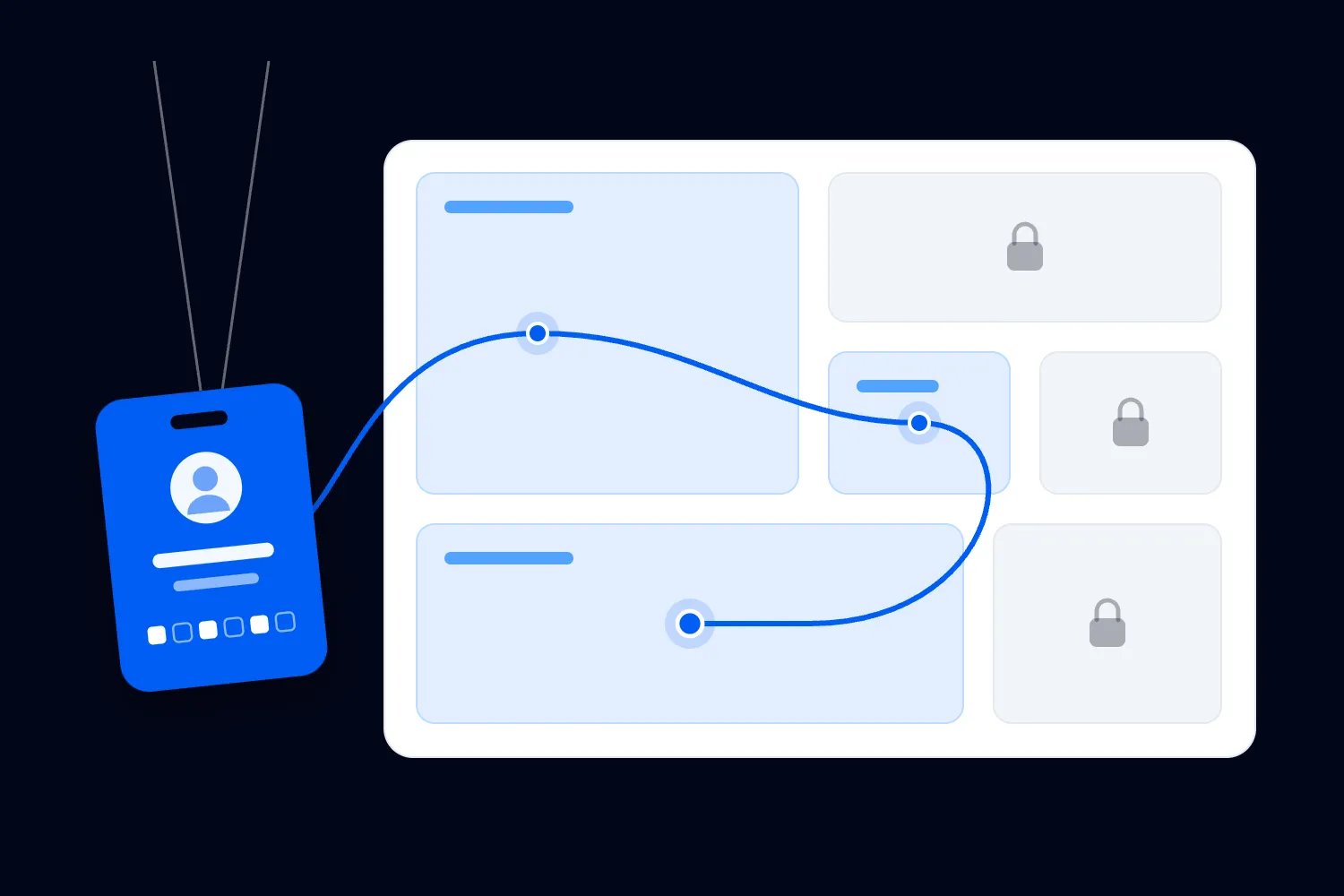
Then check the workspaces around the event. An external user may have been removed from the event folder while remaining a member of the wider production workspace. A supplier may have been invited to the whole reporting area when it only needed one finished report. Narrow the review to the access you actually granted, including access granted too broadly.
You don't need to inspect every tool your company has ever bought. You do need an answer from the owners of the systems involved in this event. Where nobody knows whether a supplier has access, record that uncertainty and assign someone to resolve it. An unanswered question shouldn't be recorded as a completed removal.
Transfer the work before deleting accounts
Before removing an account permanently, find out what it owns. An account may own the final production schedule, the supplier settlement sheet, an audience report or the folder containing approved creative. People having a link doesn't necessarily mean the business controls the underlying file.
Ask for a handover that identifies the current versions and where they belong. Name the colleague who will own each remaining job. Have that colleague open the necessary material through their own account and confirm that they can use it. A message saying "everything is in the drive" isn't enough when nobody knows which drive.
The transfer method depends on the service and the account relationship. Google's administrator guidance on transferring Drive files distinguishes transfers within a managed organisation from external ownership, where different options and restrictions apply. It also warns that a former owner can retain editing access after a transfer unless their permissions change or their account is deleted.
That matters when an agency owns the original file. Agree the supported way to deliver it into storage your business controls, then check the result. If the method creates a copy, update the working references and confirm which version the team should use. Avoid leaving finance to reconcile against an old link after the agency has closed its workspace.
Check more than whether a file opens. Can the receiving colleague edit the settlement workbook if that is required? Are the supporting documents included? Can they find the explanation for a disputed adjustment? Do links inside the document still lead to material they are authorised to view?
Keep the original approvals and change history where the job requires them and the service supports it. A screenshot of the final total may lose the information needed to explain how it was agreed. Equally, don't duplicate every buyer record simply because transferring the whole folder is convenient.
Our guide to how long to keep attendee data explains the separate decisions for transaction records, temporary door lists and marketing information. Here, the job is to preserve the necessary records under an authorised owner while removing the departing person's access. Retaining a record doesn't require retaining their account permissions.
If the transfer cannot finish before the cutoff, ask the system owner whether they can suspend access while preserving the material. Suspension and permanent deletion can have different effects. Follow the provider's instructions, and keep the unresolved transfer visible until the receiving owner has verified it.
Remove the permission and check existing sessions
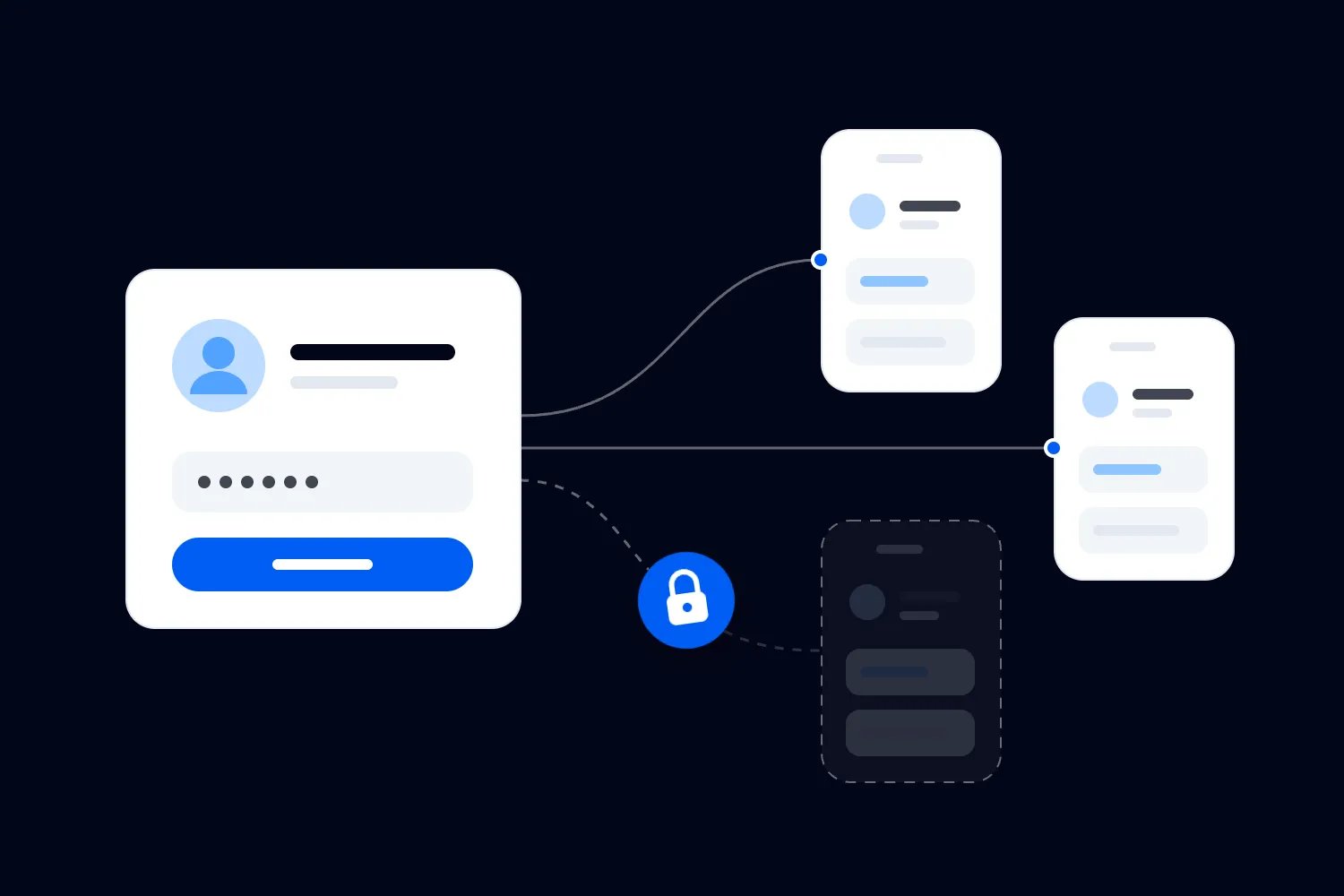
Once the handover is secure, remove the event permissions that have ended through the service's supported controls. Depending on the system, you may remove the person from an event, revoke a partner relationship, remove group membership or suspend a business account. Choose the action that matches the access granted.
Don't delete a freelancer's personal account or ask for its password. Your business needs to control access to its event, files and services. The freelancer may use the same personal identity for other clients, and that wider identity is outside your closeout task.
A change to permission and a change to sign-in state are related, but services handle them differently. Ask whether removing the permission takes effect in an already open browser, a mobile application or another connected device. Use the current documentation rather than assuming the next password prompt tells the whole story.
Google's managed-account sign-out guidance provides a useful example of that distinction. Resetting sign-in cookies signs a user out of browsers and mobile devices, but doesn't sign them out of applications such as Drive for desktop. Google describes revoking third-party application access as an additional action. Other services have their own controls and limits.
For each relevant service, have its administrator use the supported session and device controls where required. Record what the action covers and any delay the provider documents. If the service doesn't provide an immediate way to end an existing session, ask support how to achieve the intended cutoff and track the answer.
Also remove unnecessary routes back in. Check whether the departing person remains an administrator, a recovery contact or a recipient of approval requests. Their ordinary event role may have ended while their phone number still receives account recovery messages.
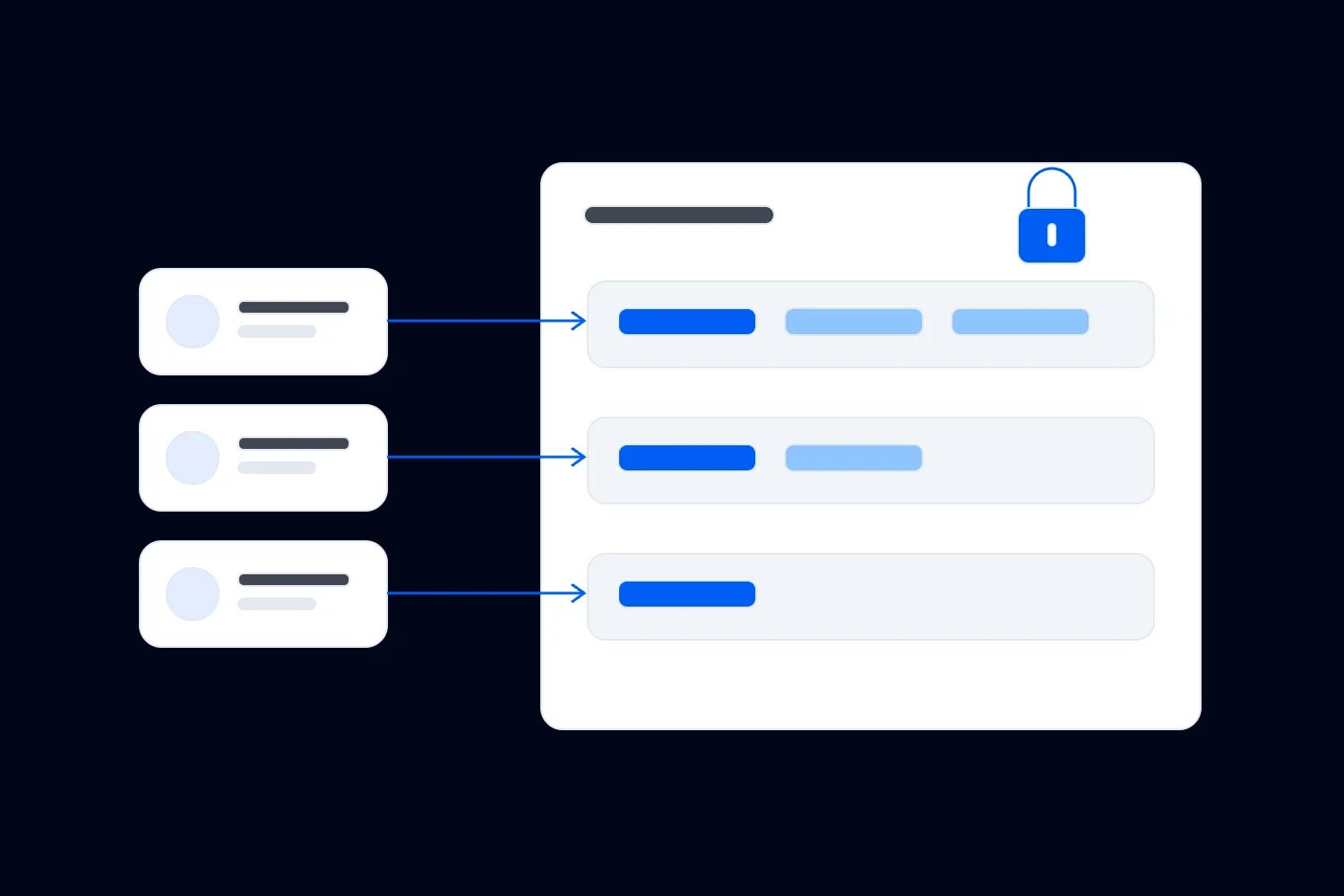
Where the business used Loopyah's event team access, staff can work through separate accounts instead of sharing your login, including check-in access for door staff. That makes the starting responsibility clearer. Review the people assigned to the finished event and use the available account controls for changes. Check the supported process for any session or recovery question rather than assuming a particular control exists.
Deal with shared passwords and connected services separately
Sometimes a temporary team used a shared credential despite your normal approach. Removing someone's access to the password manager doesn't erase a password they already knew or copied. Identify the affected account and change the secret through the service's supported procedure.
Prepare the replacement first. Confirm that the business controls the account's recovery route and that an authorised colleague can sign in afterwards. Update the approved place where the new credential is stored, and give access only to people who still need it. Don't send the replacement into the same event chat that includes the departing team.
Check connected services as well. A registration form may send responses into a spreadsheet, or a reporting tool may read ticket sales through an approved connection. An integration key or token is a credential that lets software access another service. It can keep working independently of the person who originally set up the connection.
Ask the technical owner which connections belong to the event, whose authority they use and what would stop if that authority ended. Remove connections whose job is finished. For a continuing connection, transfer it through the supported business arrangement or replace its credential under the control of someone who remains responsible.
Be careful with a connection serving several events. Revoking it without checking could interrupt a current ticket launch or a report finance still needs. The answer isn't to leave an old contractor in control indefinitely. Arrange the replacement, test the necessary work and retire the old permission as part of one planned change.
Keep secrets out of the closeout record. Identify the connection and its owner, state that the old credential was revoked, and record the verification. The record should help a colleague understand what changed without allowing them to use the credential themselves.
Check any service that sends event information to a supplier's destination. Revoking a person's login won't necessarily stop a scheduled report, an email forwarding rule or an automated file delivery. Ask the service owner to confirm where information still goes, and end deliveries that no longer have an agreed purpose.
Collect devices and resolve local copies
A returned tablet can still contain a downloaded door list, an open browser session or files waiting to upload. Receiving the hardware is a custody check. Removing its event information and access is another job.
Match returned equipment to the issue record. Include tablets, laptops, removable drives and any equipment that stored event information. Ask the responsible person to check for unfinished uploads or records needed for reconciliation before preparing the device for reuse or return.
Then follow the approved procedure for that particular device. The NCSC's device erasure guidance explains why simply deleting files may leave recoverable data and why necessary information should be backed up before erasure. Use current manufacturer instructions and the business's security requirements for the actual equipment.
With rented devices, agree who performs the cleanup and what evidence the rental supplier provides. Don't assume that returning a device with its screen locked removes the information. Conversely, don't reset rental equipment without understanding the return agreement and the effect on records you still need.
Personal phones need a different approach. Close business access through the service, and follow the agreed policy for removing work information. Don't remotely erase somebody's entire personal device as an improvised way to remove an event list. If work information cannot be separated safely, involve the person responsible for devices and privacy.
Ask about exports, screenshots and saved attachments where those were part of the job. Your door lead may have a backup list in a downloads folder. A supplier may have saved a report in its own shared drive. Revoking the original link doesn't remove those copies.
For paper, collect or securely dispose of the finished lists according to your retention decision. If a particular entry is needed for an unresolved complaint, preserve the necessary evidence in the restricted case record. Keeping every printed door list on a producer's desk isn't a useful way to preserve one disputed admission.
A missing device remains an open issue. Record its identifier, last known custodian and the actions taken to restrict access. Escalate it through your lost-device process. Don't mark it returned because the supplier has promised to look for it tomorrow.
Ask suppliers to confirm what happens to their copies
Your own account review ends access to your systems. It doesn't settle what an agency, registration contractor or production supplier still holds in theirs. Ask the supplier to account for the information you provided and the copies created while doing the work.
Start with the actual arrangement. Was the supplier handling attendee information on your instructions, or did it collect information for a separate purpose of its own? The answer affects its responsibilities. Have the person responsible for privacy check the contract and the supplier's role rather than sending every supplier the same deletion demand.
For processing covered by UK GDPR, the ICO's guidance on end-of-contract terms explains that the contract must require a processor to delete or return personal data at the controller's choice, and delete existing copies unless UK law requires storage. It also recognises practical backup restrictions with safeguards and subsequent deletion. Check the rules applying to your own arrangement and jurisdiction.
Make the instruction specific enough to answer. Identify the event, information category, agreed return location and the action required for working copies. Ask the supplier to identify any exception, the reason, who can still access the information and when the exception will be reviewed or ended.
A useful confirmation might distinguish the working attendee export, the final report and information retained for an identified obligation. "We've deleted your data" tells you little if the supplier hasn't considered its shared folders, subcontractors or scheduled backups.
Where backup copies cannot be removed immediately, ask how they are protected from ordinary use and when the relevant cycle removes them. Have the contractual owner assess whether the answer meets the agreed requirements. Avoid accepting "we have backups" as an indefinite reason to keep operational access.
Keep supplier confirmation with the closeout record. You don't need to attach another attendee export to prove which export was deleted. Use the event reference, category and agreed location, and restrict any supporting evidence containing personal information.
If the supplier won't confirm, leave the item open with an owner and escalation date. The rest of the event can continue closing, but the missing answer remains visible. Repeated silence is something to resolve before giving the supplier information for another event.
Keep settlement exceptions small and dated
Imagine your freelance box office lead has finished the event but still needs to explain a refund adjustment. The easy response is to leave their full event permissions in place until finance signs everything off. A better response starts with the adjustment itself.
What information do they need to answer it? An approved report and a conversation may be enough. If actual system access is necessary, identify the narrowest supported permission, the specific task and the deadline. Keep responsibility for approval and payment with the appropriate business owner.
Write the exception so another colleague can close it without reconstructing the conversation. Identify the named user, system, permitted work, approver, end point and person responsible for removal. State whether access ends when the answer is accepted or at the agreed deadline, with any extension requiring a fresh decision.
For example, the producer approves access to the relevant settlement material until Thursday afternoon so the contractor can explain a discrepancy. The contractor doesn't need the marketing audience or the next event's buyer list. On Thursday, finance either accepts the answer or identifies the remaining question, and the producer decides whether a narrower extension is justified.
That is a fictional example, not a recommended universal period. A complicated settlement may take longer. The useful discipline is that the permission follows an identifiable piece of work and receives a review, rather than remaining active because nobody wants to chase it.
If the platform cannot separate the needed information from broader permissions, decide whether an authorised colleague can do the system work instead. Don't describe a broad account as restricted simply because the contractor has promised to open only one report.
Treat an extension as a decision. Ask what remains unfinished and whether the same access is still necessary. Record the revised end point and owner. Avoid creating an exception whose only closing condition is "when everything is sorted," because different people will understand that differently.
Work through one event's closeout
Imagine a paid conference run by a small permanent team with an outside production agency and temporary registration staff. The conference ends on Saturday. The agency owes the final production files, finance has an unresolved supplier adjustment, and a buyer has asked about a disputed admission. These details are invented to show how the decisions connect.
Before the registration team leaves, the supervisor confirms that the necessary attendance information has reached the approved system. The supervisor identifies the records relevant to the admission complaint and passes them to the colleague handling it. That colleague accepts the case. The temporary staff don't need continuing access to the wider attendee list simply because the complaint is open.
The ticketing owner removes the finished registration permissions and cancels an unused invitation for a replacement worker who never attended. The equipment lead checks the returned tablets against the issue record. One tablet has an unfinished upload, so it stays with the authorised lead until the upload and its contents have been checked. It doesn't go straight back into the rental case.
The producer then checks the agency handover. The final schedule is readable, but its supporting settlement workbook belongs to an agency employee. Finance can see the totals but cannot open the supporting documents. The producer records the handover as incomplete and asks the agency to deliver the agreed material into the business's controlled storage.
The agency's advertising work is finished, so that access can end independently. The marketing owner confirms the business still controls the advertising account and that required campaign material has been delivered before removing the agency relationship. There is no reason to leave advertising access open while a production workbook is being transferred.
For the supplier adjustment, finance requests an explanation against the approved report. The agency answers through the agreed business contact without needing another login. If the answer required system work, the producer would assess a specific exception. An unpaid invoice alone doesn't explain why a supplier needs access to attendee information.
After finance accepts the transferred workbook, the file owner checks both ownership and sharing. The handover hasn't ended the agency's editing permission automatically. That permission receives its own removal, and the receiving colleague confirms that finance can still use the current version.
Finally, the agency identifies its working attendee export and confirms the agreed action for that copy. Any justified retention exception goes to the contractual owner for review. The producer records the response and follows up on the tablet, rather than declaring the entire closeout complete because the agency's final report arrived.
Several jobs happen in parallel here, but each has an owner and a clear result. The admission case stays available to support, the financial explanation reaches finance, and the temporary registration team loses access when its work ends. You avoid making every unresolved question a reason to leave everybody connected.
Keep a record someone else can finish
For that conference, the closeout entry for the agency workbook would identify the material, its original location, the receiving owner and the destination. It would state that finance verified the supporting documents, then record the separate change to the agency's editing permission. A colleague can understand the result without opening a folder of unrelated screenshots.
The tablet entry would look different. It would identify the device, the upload that needed checking, the authorised custodian and the next action before return. Once the information and cleanup were verified, the equipment lead could record return to the rental supplier. Until then, the entry would remain open.
For a settlement exception, include the agreed review point and the person who will actually remove access. An approver who is away when the deadline arrives needs an authorised replacement. Otherwise, your carefully chosen cutoff becomes another reminder waiting in somebody's inbox while the account remains available.
Verify the removal before calling the event closed
Ask each system owner for evidence of the current state. That could be the relevant team list, the completed removal record, a support confirmation or a controlled check through an authorised test account. Choose evidence that proves the particular action without collecting unnecessary personal information.
A request to remove access is evidence that somebody asked. It isn't evidence that the administrator completed it. Record both the person who carried out the action and who confirmed the result where the access is sensitive enough to justify a second check.
Public sharing links deserve an explicit check during that final review. Removing a named supplier won't close a report that anyone with its link can open. Ask the file owner whether the report still needs that sharing setting, and restrict it through the supported controls when the purpose ends. If the report must remain available to a client, provide the agreed access to the intended people. Check the links in the handover message too, so the client receives the current report through the correct route agreed with them.
Test the remaining work too. Finance should still reach the settlement records, customer support should still receive buyer enquiries, and the business owner should still control the event account. Removing access successfully while breaking the handover creates another problem for the same exhausted team.
Keep the completion language honest. "Removed from event team; supplier copy confirmation outstanding" is useful. "Complete" hides the remaining work. For each unresolved item, name the owner, the next action and the date for review.
Our post-event report guide helps turn the event's results into decisions for the next one. Include access problems that changed the work, such as a contractor owning a crucial workbook or a shared device arriving with an owner session open. Record the correction, rather than filling the report with credentials or screenshots of attendee information.
Before the next event, use what you learned when granting access. Confirm the business owner of important files, agree supplier return requirements and record the intended end of temporary permissions when you issue them. Your next closeout becomes easier because the team already knows what it must hand back.

Author: By the Loopyah Content Team
The Loopyah Content Team shares expert insights, practical guides, and industry updates to help event organizers create unforgettable experiences and stay ahead in the event planning world.